This article is for anyone dealing with data loss from a hard drive – internal or external. We'll walk you through three basic categories of failure, help you recognise warning signs, and explain which "guaranteed tips" from the internet can permanently destroy your data.
Article guide:
- Three types of hard drive failure
- Drive failed – first steps based on symptoms
- When is it safe to attempt data recovery yourself
- Mistakes that complicate or prevent data recovery
- Why modern drives (SMR) are more problematic
- When to contact a specialised laboratory
Three types of hard drive failure – how to identify them
Before you do anything, it's important to at least roughly understand what has probably happened to your drive. Hard drive failures fall into three basic categories – and each requires a different approach.
Logical (software) failure – deleted data, formatted drive, corrupted file system, or damaged partition table. The drive behaves normally on a physical level – no unusual sounds, the system identifies it correctly. This is the most favourable scenario, often resolvable on your own. However, with caveats we discuss below. More about this type of failure and options for recovering deleted files can be found on our page HDD data recovery – deleted data, recovery after formatting.
Mechanical failure – damaged read/write heads, damaged platters, seized motor, broken bearing, or heads stuck on the platter surface (known as stiction). Mechanical failure usually manifests through unusual sounds – clicking, grinding, buzzing, or beeping. However, it's not always possible to determine the exact cause from the symptom alone. Mechanical damage always requires specialists with a clean environment and appropriate equipment. Details on individual mechanical faults can be found in the sections Mechanical damage, drop, impact and Drive is clicking, grinding, making unusual sounds.
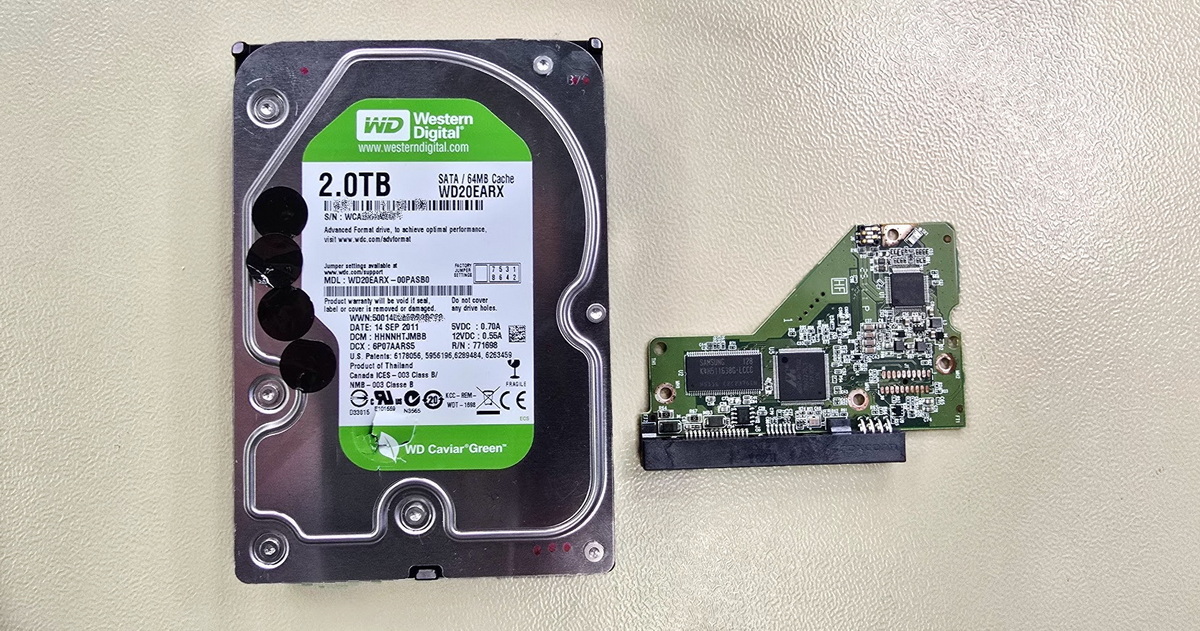
Electronic and firmware failure – burned drive electronics (PCB), corrupted firmware, or damaged service modules stored in the service area on the platters. The drive either doesn't respond at all, or identifies incorrectly in the system – showing the wrong capacity, an unknown model, or attempting to start but failing to complete initialisation. With modern drives, simply swapping the PCB doesn't work, because each PCB contains unique service data (adaptive ROM), and on some models, the communication between the processor and memory is also locked (SED locked). More information in the sections Short circuit, power surge, storm damage and Hard drive won't turn on.
Watch out for combinations: In practice, failure types often overlap. A drive that seemingly behaves normally and "just" has inaccessible data may have a purely software problem – but equally, the cause could be a service area error, incipient head failure, or platter surface degradation. Without professional diagnostics, it's impossible to determine conclusively what you're dealing with. This is important to keep in mind for all subsequent steps.
Drive failed – what to do in the first few minutes
The right response in the first few minutes after a drive failure can determine whether your data will be recoverable. The following overview will help you orient yourself based on symptoms – but keep in mind that without diagnostics, this is always just an estimate of the probable cause.
Rhythmic clicking (click-click-click) – most commonly indicates failure of the read/write heads and/or platter surface. The drive repeatedly attempts initialisation – the heads search for service data, can't find it, and return to their home position. In rare cases (roughly 10%), the culprit may be the electronics (PCB). The correct response: power off immediately and don't try turning it on again.
Grinding, unpleasant sounds – likely a head problem, but doesn't necessarily mean the heads are touching the platters. Some drives – typically Toshiba, but other brands too – can produce very unpleasant sounds even when the heads "just" can't operate correctly. Regardless of the exact cause: power off the drive. Malfunctioning heads can damage the platters during continued operation.
Buzzing or beeping – can be caused by a motor fault, bearing issue, or heads stuck on the platters. Distinguishing between these causes without opening the drive is practically impossible. Power off the drive and don't try repeatedly turning it on. Stuck heads will either stay in place, or the motor will rip them free – and that's usually the end.
Silence, no response – the most common cause is electronics (PCB) failure. But beware: stuck heads can also be the culprit. The drive's symptoms may be so subtle that it appears "dead". It's worth putting your ear close and listening carefully. Check the cable, try a different computer or a different power adapter (for external drives). If that doesn't help either, professional diagnostics are in order.
Burning smell – short circuit on the PCB or power surge. Disconnect the power immediately. Don't reconnect the drive.
Drive runs normally but data is inaccessible – the most tempting case, because it invites an immediate software "fix". However, the cause can span an entire spectrum of problems: corrupted file system, service area error, incipient head failure, or platter degradation. It's impossible to determine conclusively. Don't format, don't run CHKDSK. If the drive isn't making any sounds and the system identifies it correctly, read the following section on DIY recovery. If in any doubt, contact professionals instead.
A more detailed overview of first steps when a drive fails can be found on our page What you should do when a hard drive fails.
When is it safe to attempt data recovery yourself
Software-based data recovery makes sense, but only if specific conditions are met. All of them must apply simultaneously:
- The drive spins up and runs quietly – no unusual sounds.
- The system (BIOS and operating system) correctly identifies the drive – correct model and capacity.
- The drive hasn't suffered a drop, impact, water contact, or power surge.
- S.M.A.R.T. values show no issues – particularly Reallocated Sector Count, Current Pending Sector Count, and Uncorrectable Sector Count should all be zero.
If all conditions are met, you can try recovery yourself. But follow one crucial principle: never work directly on the damaged drive.
The right approach: clone first, then recover
The first step should be creating a bit-for-bit copy (clone) of the entire drive onto another, healthy medium. Ideally, boot from a Linux live USB and use a tool like GNU ddrescue or HDDSuperClone. Both are designed to intelligently skip problematic sectors during cloning and minimise the strain on a failing drive.
Only then run recovery software on the clone. And if you need to repair the file system – make a copy of the clone first. File system repair means writing to the disk, and every write carries potential risk.
Software worth mentioning
- DMDE – professional-grade at a reasonable price (the free version recovers up to 4,000 files per directory). Excellent for reconstructing damaged file systems, supports NTFS, exFAT, ext4, HFS+. Among data recovery specialists, it's one of the most respected tools.
- Recuva – simple and free. Suitable for basic recovery of deleted files from NTFS or FAT. Not sufficient for more complex cases.
- TestDisk + PhotoRec – an open-source duo. TestDisk excels at repairing partition tables and recovering deleted partitions. PhotoRec performs file carving – searching for files by their signature directly in sectors. It's a last-resort recovery method: recovered files won't have their original names or directory structure.
No software can detect the physical condition of a drive. If recovery stalls, the drive responds slowly, or starts making any sounds – stop immediately. Even a drive that initially behaves normally may have an incipient hardware problem that aggressive full-surface scanning will dramatically worsen.
Mistakes that complicate or prevent data recovery
In our laboratory, we regularly receive drives where a previous non-expert intervention – whether by the user or an IT service without data recovery specialisation – significantly reduced the chances of successful recovery. These are the mistakes we see most often.
1. Running CHKDSK or fsck on a failing drive
This is arguably the most common and most dangerous mistake. CHKDSK is a file system repair tool – not a data recovery tool. With the /f parameter, it actively overwrites file system metadata (MFT tables, allocation records). With the /r parameter, it additionally reads the entire disk surface sector by sector. On a drive with a physical problem, this has a doubly devastating effect: it overwrites structures that specialists need for professional data reconstruction, while simultaneously placing extreme strain on failing hardware. In practice, we see cases where data was recoverable before CHKDSK was run – and virtually unrecoverable afterwards.
2. Repeatedly powering on a non-functional drive
Every power-on means an initialisation attempt – the read/write heads try to load service data from the platters. If the heads are damaged, each attempt further damages the magnetic layer. If they're stuck on the platters, the motor either can't free them, or rips them free – which typically causes fatal damage. A drive with good recovery prospects can become an unrecoverable case after just a few attempts.
3. Opening the drive outside a clean environment
The read/write heads of a modern hard drive levitate just 3–6 nanometres above the surface of the spinning platters. For perspective: a human hair is roughly 75,000 nm in diameter, and a typical dust particle is 10,000–50,000 nm. A single visible particle on the platter is enough to cause surface damage when the drive spins up. YouTube videos with guides on "repairing your drive at home" are a reliable path to turning a solvable problem into an unsolvable one.
4. Swapping the electronics (PCB) for an "identical" one
This approach worked for drives manufactured roughly up to 2003. Since then, virtually every hard drive has a chip on its electronics containing unique service data – the adaptive ROM. It stores calibration data specific to the particular read/write heads and platters of that individual unit. Installing a foreign PCB means the heads receive incorrect calibration parameters, fly at the wrong height, and can crash into the platters. On modern drives with SED locked technology (typically Western Digital external drives), the controller processor is also unique – simply transferring the ROM isn't enough. More about PCB-related issues can be found in the section Hard drive won't turn on – detailed information.
5. The freezer trick
A myth from the 1990s, when some older drives with stuck heads would briefly work after cooling due to thermal contraction of metal components. On modern drives, this approach is counterproductive. The main risk: condensation of atmospheric moisture on the platters and electronics after removal from the freezer causes corrosion and short circuits. If the freezer worked as a reliable solution, every data recovery lab would have an industrial freezer instead of a cleanroom.
6. Removing the drive from its external enclosure and connecting via SATA
Many users assume that if the external enclosure fails, they can simply remove the drive and connect it directly to a computer via SATA cable. With modern external drives, this often either isn't possible or doesn't lead anywhere – for two reasons.
First: many modern 2.5" external drives (particularly WD My Passport) have the USB interface integrated directly on the drive's electronics. There simply is no SATA connector. Connecting such a drive to a computer's motherboard without hardware conversion isn't possible.
Second: even where the drive is technically connectable via SATA, you'll hit an encryption problem. The USB-to-SATA bridge in the original external enclosure on many drives performs transparent hardware encryption of all data – typically AES-256. The user usually has no idea about this and never set any password. But the encryption happens automatically. Connecting the drive directly via SATA yields only unreadable data. Decryption requires either the original functioning bridge, or a compatible replacement with the same encryption chip revision and corresponding firmware. More about data encryption and recovery options can be found in the section Data is encrypted and I don't know the password.
Why modern drives with shingled recording (SMR) are more problematic
We write in more detail about Shingled Magnetic Recording (SMR) technology on our page How HDD works and data recovery principles. Here, we'll summarise what matters from a data recovery perspective.
SMR drives are entirely commonplace today. They're used primarily by Western Digital and Seagate in external drives and 2.5" laptop models. The average user has no way of telling that their drive is SMR unless they specifically look up the technical specifications for their particular model.
What's different about SMR drives from a data recovery perspective?
On a conventional CMR drive, deleted data physically remains on the platter until overwritten by other data. Recovery of deleted files is therefore usually successful with CMR, provided you don't continue using the drive.
With SMR drives, the situation is more complicated. Data is organised into overlapping zones, and the drive performs its own internal reorganisation – rearranging tracks during idle time. Deleted data can be overwritten by the drive's internal processes without any user intervention whatsoever. Modern SMR drives may additionally support a function similar to TRIM, known primarily from SSDs. However, this doesn't mean that data recovery from an SMR drive is automatically ruled out. In practice, data on these drives can often be worked with at the physical block level (PBA), and recovery is possible in many cases. It always depends on the specific situation, drive model, and how much time the drive had for internal processes after deletion.
Professional recovery is more complicated with SMR drives also because of the multi-layer data translator (the so-called T2 – Second Level Translator), which dynamically maps where data actually resides on the platters. If this module becomes corrupted, the drive may appear completely empty even though data on the platters is still intact. Non-expert intervention with the translator – such as attempting its regeneration – can irreversibly destroy data.
Older drives are not without risk either
While a lot of attention is given to modern SMR drives, laboratories still receive a significant volume of older CMR drives – from NAS servers, desktops, and older external drives. Data loss problems are far from limited to the newest models.
From EXALAB's practice: The Seagate ST2000LM007 (shown in the header image) is among the more common drives in our laboratory. You'll find it in Seagate Backup Plus Slim, LaCie Rugged Mini external drives, and numerous HP, Dell, and Lenovo laptops. It's a 2.5" SMR drive where the typical problem is heads sticking to the platters (stiction) – the motor of this thin drive lacks the torque to free the heads. Each power-on then means the heads may drag across the platter surface and damage it.
When to contact a specialised laboratory
Professional help is necessary in these situations:
- The drive is making any unusual sounds – clicking, grinding, buzzing, beeping.
- The drive suffered a drop, impact, or water contact.
- The drive experienced a power surge or short circuit – burning smell, visible electronics damage.
- Data recovery software isn't working, stalls, or the drive slows down during scanning.
- The drive seems to behave normally, but data is inaccessible and simple steps haven't helped – the cause may be deeper than it appears at first glance.
- The drive is encrypted (BitLocker, FileVault, SED) and data is inaccessible after failure.
- The data is important and you don't have a backup – you can't afford to risk an attempt that makes things worse.
High-capacity helium drives are a category of their own
Drives with capacities of 8 TB and above – common not only in NAS servers but also in some external drives (e.g. WD My Book 10 TB+) – are often helium-filled. Unlike standard drives, they are hermetically welded shut rather than screwed together. The main complication from a data recovery standpoint isn't the helium itself, but the difficult processability of these drives. A hermetically welded chassis cannot simply be unscrewed – opening requires specialised procedures (typically CNC cutting of the weld), appropriate equipment, and experience. Inside, there's also a higher number of platters (5 or more) and read/write heads, which further complicates the entire process. If you need to recover data from a high-capacity drive, it's all the more important to entrust it to a specialised laboratory.
How professional data recovery works
After receiving the drive, we perform a free diagnostic assessment. Based on the results, we'll tell you what the fault is, what the recovery options are, and what the cost and time requirements will be. We typically offer 3–4 speed options – if you need the data urgently, express processing is available. If you're not in a hurry, you can choose a more economical option. We keep most spare parts in stock, so we can start working on your case within hours. A detailed step-by-step description of the process can be found in the section Data recovery process – how it works.
Need advice or help with data recovery? We perform diagnostics free of charge and with no obligation, and we also arrange free collection of the damaged drive. Contact us at +420 608 177 773 – we'll be happy to advise you before you decide on any next step.
- Details
- By Frantisek Fridrich
- Parent Category: Blog
- Explanations and Tips