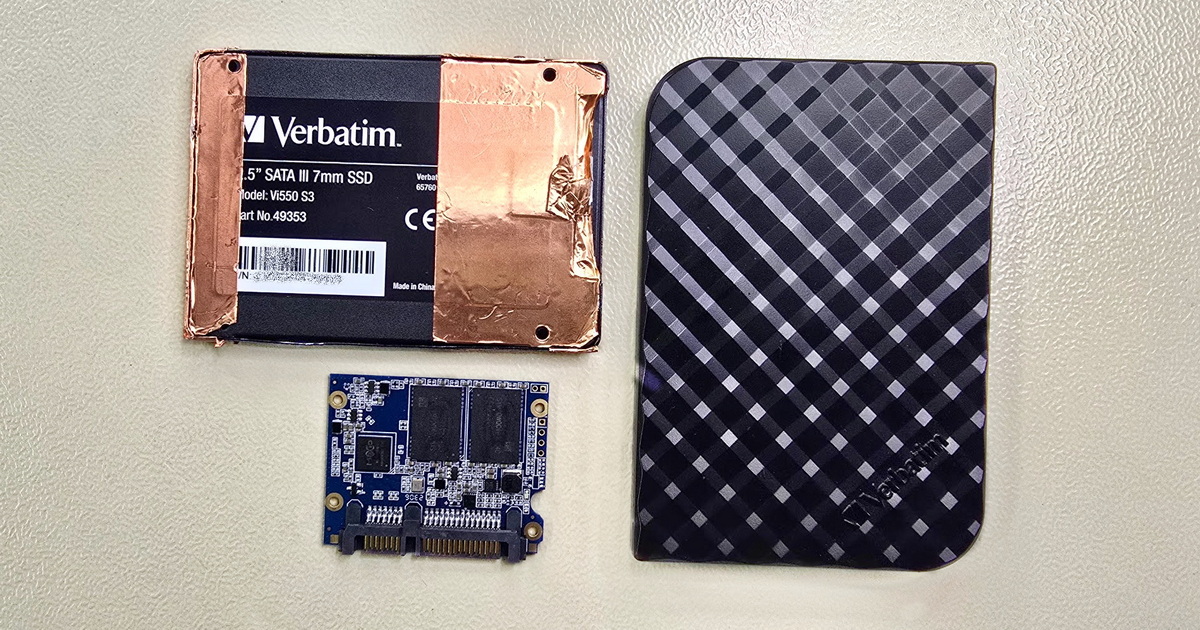
When data is lost from an SSD, it is crucial to stop using it immediately. Unlike HDDs, SSDs are sensitive to memory cell wear, and their failure can occur suddenly. We provide free diagnostics and offer professional data recovery from all types of SSDs – internal and external, SATA, M.2, and NVMe.
Data recovery from SSD and external SSDs, including current and older models. We handle both hardware and software issues. Our experts' years of experience will resolve your data loss issue.


SSD and external SSD data recovery is a relatively new and complex field. The execution of data recovery from SSDs not only requires state-of-the-art hardware and software but also continual awareness of technology advancements, years of daily experience, and an undying interest in advancing in this field. SSDs and other flash media are gradually replacing older technologies (HDDs), and it's essential to keep pace with technological advancements in the field of data recovery and restoration.
For such an uncertain failure, where the issue might be with the SSD or with the computer (device) itself, it's best to take advantage of our free consultation and diagnostic. Do not hesitate to contact us.
Rough price: starting from 1,500 CZK
More Information
Free Diagnostic
An SSD fault can cause a total collapse of the computer (device). The cause could be memory chip failure, SSD controller errors, or file system failure (usually related to memory chip errors).
Rough price: 2,500 CZK - 17,000 CZK
More Information
Free Diagnostic
If you have deleted data from the SSD or formatted it, turn off the SSD or the entire computer (device) before proceeding!
Deleted data from the current SSD or data recovery after formatting the SSD can be a significant issue. If you've deleted the data, the best advice is to immediately turn off the computer (device) and utilize our free consultation and diagnostics.
SSDs behave quite differently from older hard drives (HDDs), and it's not true anymore that deleted data is stored until overwritten. In many cases, the SSD itself and the operating system will take care of overwriting... and do so quite quickly.
This may not apply to external SSDs, older operating systems, and older SSDs (manufactured around 2009 or earlier). There may still be a chance of recovery, but the correct user action plays a significant role.
Estimated price: 1,500 CZK - 4,500 CZK
More Information
Free diagnostics
External SSDs typically connect via USB, and their inaccessibility could be due to various factors. As a first step, try connecting the external SSD to another computer. If the SSD still behaves the same, utilize our free diagnostics to better determine the cause and possible solutions.
Estimated price: 1,500 CZK - 17,000 CZK
More Information about Possible Causes of SSD Inaccessibility
Free diagnostics
SSDs do not contain any moving parts and are therefore resistant to shocks and falls during normal use. However, if an accident occurs in which the SSD is mechanically damaged, cracked, or bent, it's important not to turn on the SSD.
Due to electronic failure, moisture, incorrect wiring, faulty power supply, etc., a short circuit or overvoltage can occur and damage the SSD. In this case, it's better not to turn on the SSD. Use our free diagnostics and pickup.
Estimated cost: 2,500 CZK - 17,000 CZK
More information
Free diagnostics
Bitlocker (Windows), Filevault (macOS), LUKS (Linux)... secure data on SSDs with strong encryption. Losing the password can be a problem, but this eventuality is considered when activating encryption, and the authorized user should have an alternative method available.
Computers today are commonly equipped with a cryptographic processor (T2, TPM), which should eliminate potential security breaches and encrypts data on the SSD in conjunction with the above-mentioned programs. That is, if this function is enabled. In combination with the aforementioned software, it provides very strong data protection, and a hardware failure can make the SSD data inaccessible.
Do you have a problem with SSD and data encryption? Don't hesitate to contact us.
Estimated cost: from 1,500 CZK
More information
Free diagnostics
If you have another issue with your SSD, take advantage of our free consultation and diagnostics.
Free consultation and diagnostics
SSDs are not a new invention; the first commercial products date back to 1991 (or 1978, but those were different technologies). However, it is only since around 2010 that we have begun to encounter them in everyday life. Nowadays, almost every new personal computer is equipped with an SSD, at least as a system disk. Data is stored in NAND flash memory instead of the magnetic layer in hard disks (HDD).
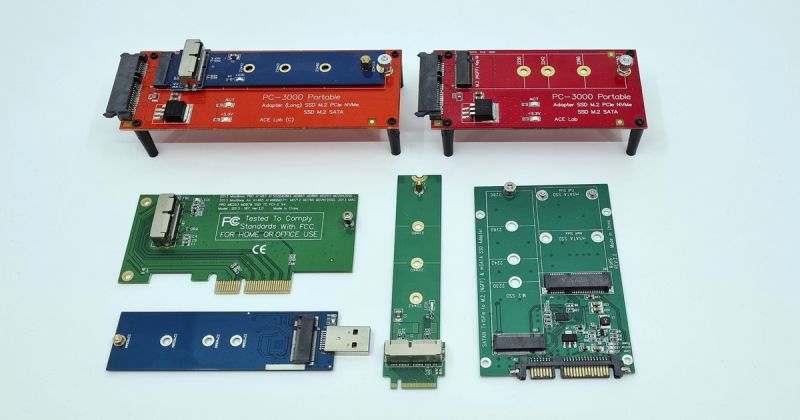
SSDs are most commonly in the form of 2.5" disks (replacing the mechanical hard disk) or in m.2 design for older mSATA interfaces or newer and significantly faster NVMe. These modern disks are often the size of a memory card or flash drive and have sufficient capacity for the average user.
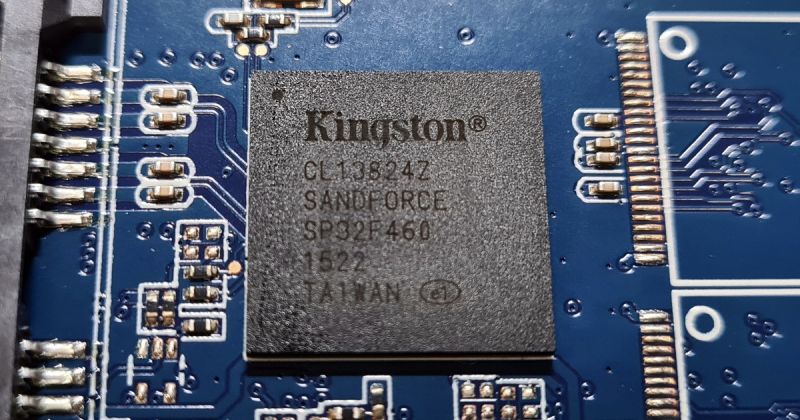
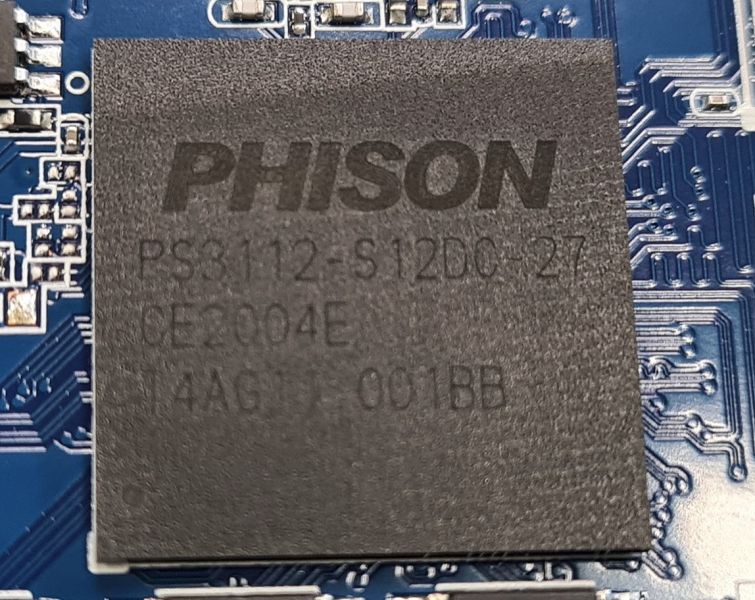
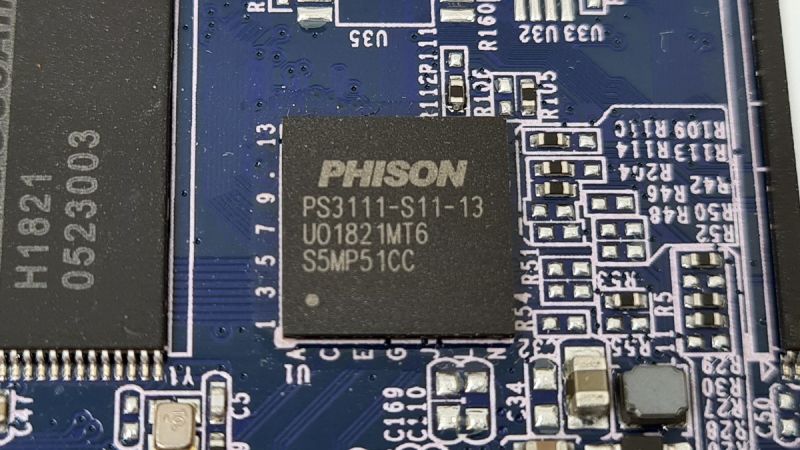
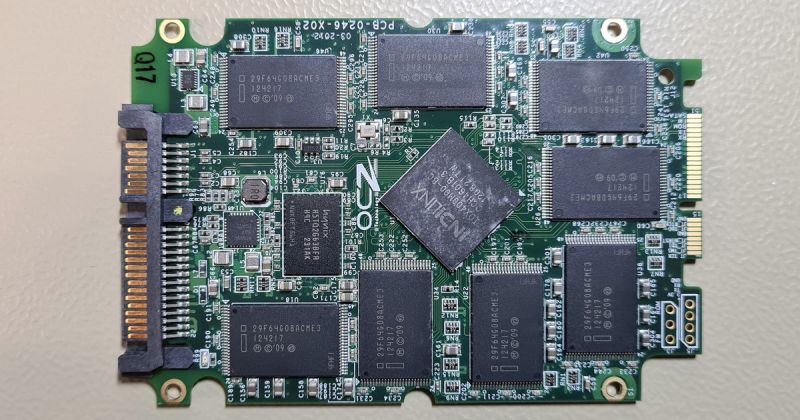
Simply put, an SSD consists of a controller and NAND memory. NAND memory usually includes 2 or more chips on an SSD. Data is distributed across all chips. This allows for greater capacity and read/write speeds. The data stored here includes both user data and service data, which are essential for the SSD to function.
Disk controller is responsible for the disk's communication with the computer (device), data distribution across memory chips, resolving internal SSD errors, optimization, and also internal encryption, deletion, etc. Functions like TRIM, Wear Leveling, Overprovisioning serve to optimize speed and longevity of the medium but also affect data recovery possibilities.
The possibilities for data recovery from SSDs are most influenced by the quality of the memory chips, their construction, the controller and its potential failures, and the related internal encryption and TRIM function.
The error in the SSD can be at multiple levels, but sometimes the problem may not relate to the SSD itself. The computer either won't start at all, or an error message appears after startup. When an external SSD is connected, the disk registers in the system, but the data is not accessible. There are numerous scenarios, and the issue may not necessarily lie in the SSD itself.
Take advantage of our free diagnostics and consultation options.
Price List
Unlike hard disks (HDD), SSDs have no moving parts. Data is stored on NAND flash memory chips, also found in mobile phones, memory cards, and flash drives. Learn more about the principles of SSD operation here.
If the SSD stops registering in the system, and is not even recognized by the computer's BIOS, then it is likely a controller or firmware issue. This is a serious problem requiring specialized hardware, software, and a knowledge of the correct procedures. In simplified terms, you'll need to upload service data into the SSD's RAM to enable subsequent reconstruction of important modules and SSD initialization. This process can be further complicated by the faulty nature of the memory chips. More about the faultiness of memory chips here.
SSD may also identify correctly in the computer (device), but the operating system won't boot, the device won't turn on, or it might try to turn on but will restart or terminate the process with an error. The cause may then be failing memory chips. NAND memory has physical properties that account for a certain number of write and erase cycles, after which the memory will start to fault, or reach the end of its life span. And because this is consumer electronics, not all memory chips will reach the expected number of cycles and may fault earlier. The problem is then similar to when hard disks (HDD) begin to develop bad sectors due to a failing data platter surface (or read heads). The result can be similar.
For a more precise diagnosis, take advantage of our free diagnostics or consultation
Price List
If you have deleted data from your SSD or formatted it, turn off the SSD or the entire computer (device) before you continue reading!
Current SSDs use NAND-type flash memories as storage, which have many advantages but also disadvantages. One disadvantage is the actual way data is deleted. NAND memories can swiftly write data to memory cells. However, unlike hard disks, which many users are familiar with, NAND memories do not allow for direct data rewriting. Therefore, the rule known for hard disks that data remains on the disk until rewritten would actually slow down SSD and therefore the operating system (OS). Hence, the TRIM function was added to SSDs and supported by operating systems like Windows, macOS, Linux, and others. Each flash-based storage medium has its own controller that internally handles its function. The SSD controller is responsible for executing the TRIM function.
So how does data deletion work on an SSD? The user (or OS) issues a command to delete data. The OS marks the cells as empty, but the SSD controller still considers the space as occupied. If the OS (user) were to write additional data at that moment, the controller would direct the data to another part of the SSD (NAND memory). When the SSD has nothing else to do, the OS instructs the controller to use the TRIM function, which will erase the memory cells affected by the recent data deletion. At this point, the data is permanently deleted and irrecoverable. Additional features also interfere with the process, but they are not relevant to the explanation of how data is deleted from SSDs (NAND memories).
TRIM functionality and its OS support may not be as treacherous on older OS and SSDs. It is also not supported on some external SSDs. There is still a chance that your OS does not have the TRIM function or has not yet applied it to your SSD. Take advantage of our free diagnosis and problem consultation!
Formatting and secure data deletion from SSD is handled similarly to data deletion, and in some cases even more thoroughly. After formatting, the disk space is freed up from the OS perspective and then handled by the aforementioned TRIM function. Secure SSD deletion is not advisable by overwriting due to a limited number of write and erase cycles. Because all current SSDs use internal data encryption, secure data deletion is accomplished by changing the key in the SSD controller.
Consultation, Diagnosis, Pickup
Price List for Recovering Deleted Data from SSD
An external SSD may become inaccessible due to software defects or file system incompatibility. It could also fail due to memory chip errors, a controller failure, firmware issues, or even a problem with the USB converter, damaged connectors, or other mechanical damage.
Software defects could manifest as the SSD connecting to the computer (device) correctly, showing its label and capacity, but the data being inaccessible. You can attempt data recovery on your own. We provide advice on which software to choose, what to avoid, and when to consult experts here.
File system incompatibility can also result in data inaccessibility. For instance, if the external SSD has been used with Apple's macOS, it might not work properly with Windows, and vice versa. If this is a potential cause, try the disk on a computer (device) with which it previously worked. Software can also assist in data recovery in such cases. Guidelines on how to go about it and what to avoid can be found here.
Memory chip failures and associated SSD controller issues are further described here.
USB Converter could be either integrated into the external SSD's electronics or be separate. Issues with USB drive inaccessibility (not just SSD) sometimes occur due to a broken connector or damaged disk electronics near the USB connector. The USB converter itself could also fail.
Connecting USB Cable can also be the cause of a non-functional external SSD. If it's detachable, try using a different one.
Consultation, Diagnosis, Pickup
Data Recovery Pricing for External SSDs
Mechanically Damaged SSD is similar to a mechanically damaged mobile phone, for example. The SSD contains several essential components that cannot be replaced. Data is stored in memory chips, and the SSD's controller ensures its proper functioning. These components must not be destroyed. A cracked memory chip usually means the end for it. There are typically multiple memory chips on an SSD, and data is distributed across all chips. They function similarly to a RAID array.
Another essential component of the SSD is its controller, which primarily holds the key to the data. All current SSDs encrypt data internally, and without the key stored in the controller, data from the memory chips is unrecoverable.
Although rare, we also encounter SSDs damaged by short-circuits or surges. The same rules apply as with mechanical damage; functional memory chips and a controller are essential for data recovery. Such a problem could occur due to excessive moisture, a foreign object in the SSD's electronics, or incorrect handling of the computer's power supply, among other things.
In case of mechanical damage, short-circuits, or similar serious SSD damages, we strongly recommend not to continue using the SSD and to avoid any unprofessional attempts to recover data.
Consultation, Diagnosis, Pickup
Price List for Recovery of Mechanically Damaged SSDs
User-enabled Encryption is usually integrated into Windows through Bitlocker, while Apple offers Filevault in its OS, and Linux uses the LUKS tool. Previously (before Bitlocker's integration into Windows), Truecrypt was a popular encryption tool, and we can also encounter PGP, Tomb, Veracrypt, among others.
Common to all current encryption tools is a very strong data encryption method. AES (Advanced Encryption Standard) using a 128 or 256-bit key is considered unbreakable and is elevated to XTS-AES in the latest tools, combining a 256 and a 128-bit key, i.e., using a 384-bit key. Such a complex cipher is currently considered completely unbreakable.
Loss of Password does not necessarily mean data loss. During encryption activation, the user is prompted to securely store a recovery key, which serves as a backup method in case of password loss.
Data on the SSD may be encrypted by the computer itself without the user's knowledge. Current computers are equipped with a TPM (Windows, Linux) or T2 (Apple) cryptographic processor. The cryptographic processor takes care of the computer's integrity, checks the combination of hardware and software at startup to see if it's trustworthy, and thus protects the user, their data, and also the copyright-protected content of third parties (movies, music, computer games...). The user may have encryption enabled by the cryptographic processor in combination with (most commonly) Bitlocker or Filevault and may not know it (although they should). The problem may arise in the case of computer failure, when the key stored in the cryptographic processor will be inaccessible, and so will the data on the SSD.
SED, or Self Encrypted Drive, is hardware data encryption directly at the SSD level. Data is encrypted from the first use of the SSD, and encryption occurs between the controller and the SSD's memory chips. SSDs use this function, among other things, to optimize their operation and lifespan. The user then activates data encryption with a user password using one of the above-mentioned software, which protects the key in the SSD's controller with its key.
SED, T2, or TPM and software encryption work side by side to ensure the user's data security, but in the case of unexpected failure and data inaccessibility, they may be an obstacle to their recovery or rescue.
Consultation, Diagnosis, Pickup
Price List for Recovery of Encrypted SSDs
Online, you'll find various methods, tips, recommendations, and software. Often, these are opinions from laymen or general advice for data storage media. These tips are more useful for recovering data from hard drives (HDDs), flash drives, and memory cards. Even there, well-known rules and advice may no longer apply.
The first important tip in case of data deletion or formatting of an SSD is to immediately turn off the SSD or the entire computer (device). After data deletion or quick formatting, the TRIM function is very likely to activate and permanently remove your data. With a bit of luck and speed, you can avoid this by turning off the SSD immediately. For this problem, it's best to consult with experts. You can take advantage of our free diagnosis and consultation. Find out more about the TRIM function here.
Recognizing a failing SSD gradually departing to the silicon heaven is sometimes possible. Your computer or device may start to show errors, or diagnostic software may warn of excessive error rates and recommend backing up data and replacing the SSD. If such an event happens, immediately back up important data. Waiting and procrastination could be costly. Popular diagnostic software includes CrystalDiskInfo, which you can download here. However, assume that you're reading this text when it's already too late for preventive diagnostics.
If the SSD failed due to a large number of faulty memory blocks, there is a way to attempt data recovery yourself. More information on this type of problem is provided here. Several factors can complicate the process. Steps and warnings are outlined below.
If a file system failure or other software defect occurs, not deleted data or formatted SSD, where scanning the SSD is necessary, it's possible to try the same method as for the above-mentioned problem.
File system incompatibility can cause data to be inaccessible without there being a defect. A disk used on macOS may not display on Windows or Linux and vice versa. File system incompatibility can be solved in several ways:
Procure the appropriate adapter to connect the SSD to your computer. Perform this step concurrently with identifying the type of SSD used. In some cases, it may not be possible to remove the SSD from the computer/device, especially with Apple products.
In PCs, this could be a SATA SSD, serving as a replacement for an older HDD. Alternatively, mSATA or faster NVMe SSDs in m.2 or PCIe slots may be used. Adapters for all these formats to USB are available.
For Apple devices, complications may arise. Apple often uses unique slots and interfaces that might not even have a name. Moreover, newer devices have SSDs integrated into the motherboard, making external connections impossible. If you're unsure, take advantage of our free diagnosis.
Next, you need to access the SSD itself. Several obstacles might hinder an average user:
Disable TRIM in your OS if you're trying to recover deleted data. Earlier in the text we explained how and why the TRIM function works. If you connect the SSD via USB, TRIM will likely be unavailable or disabled; however, make sure to confirm this. TRIM can also be disabled within the OS itself (Windows, macOS, Linux).
Install data recovery software. Never install it on the disk from which you're trying to recover data! Most software can be tried for free, helping you determine whether your target data is recoverable before making a purchase. You can try:
You can always take advantage of our free consultation, pickup, and diagnosis.
Confidentiality and treating data as sensitive information are a given with us. However, if the nature of the task requires it, or you simply want to have confidentiality guaranteed contractually, do not hesitate to ask for a non-disclosure agreement.
Is your data insured? Before confirming the order, we will prepare a "fault confirmation certificate," based on which you can have your insurance company approve the costs for data recovery, and only then confirm the order.
EXALAB Data Recovery
Microshop s.r.o.
Pod Marjánkou 4
169 00 Praha 6
Česká Republika
Opening hours:
Monday to Thursday
9.00 - 18.00
Friday 9.00 - 17.30
other opening hours are possible upon agreement
Hotline: +420 608 177 773
Office: +420 233 357 122
E-mail: [email protected]
Hotline: +420 608 177 773
Kancelář: +420 233 357 122
E-mail: [email protected]
Opening hours:
Monday to Thursday
9.00 - 18.00
Friday 9.00 - 17.30
other opening hours are possible upon agreement
EXALAB Data Recovery
Microshop s.r.o.
Pod Marjánkou 4
169 00 Praha 6
Česká Republika