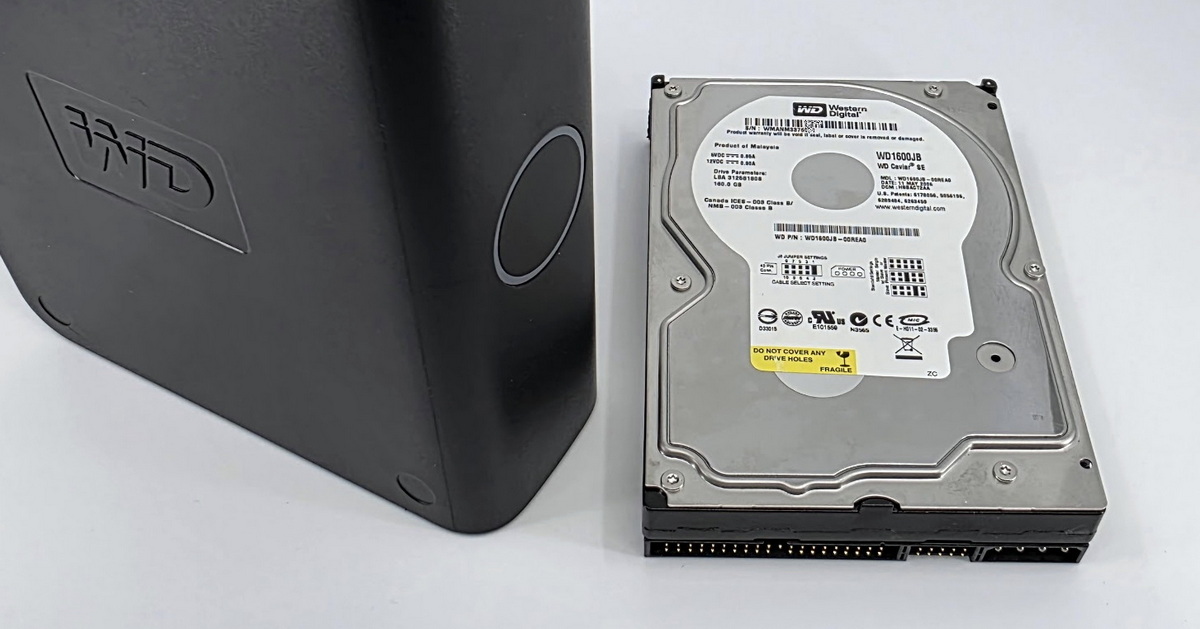
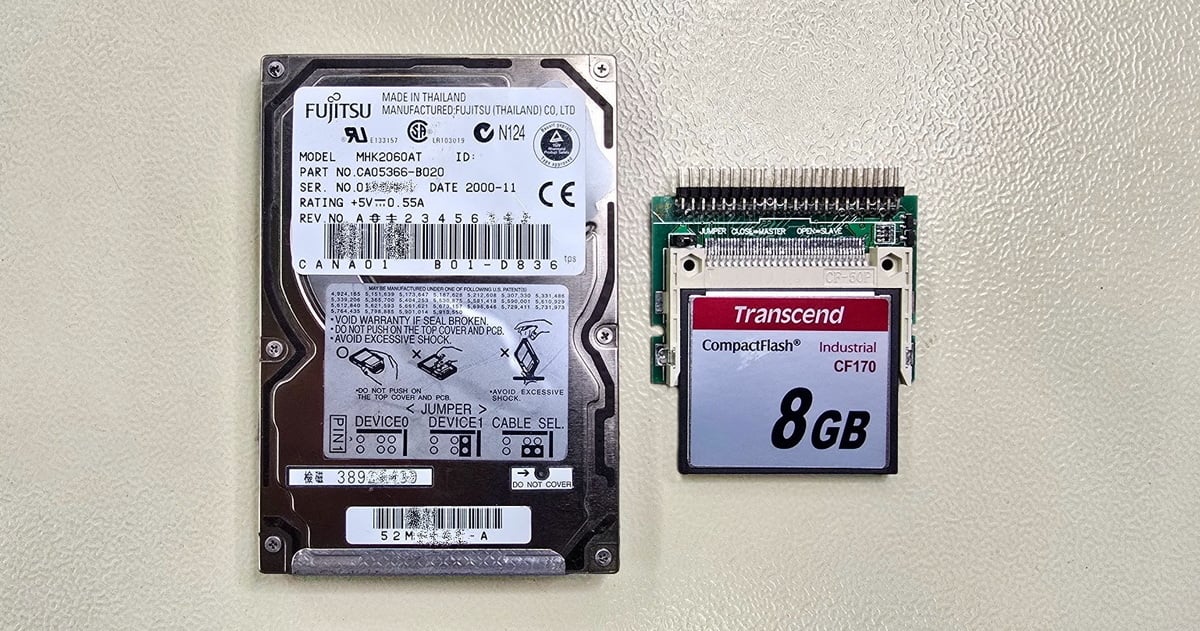
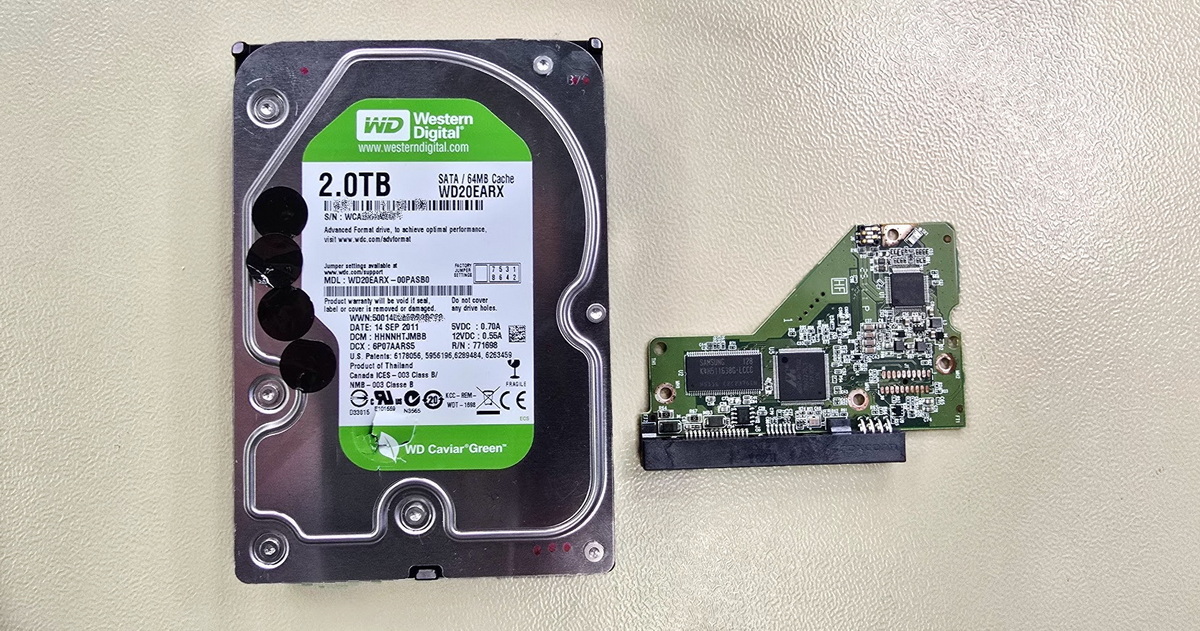
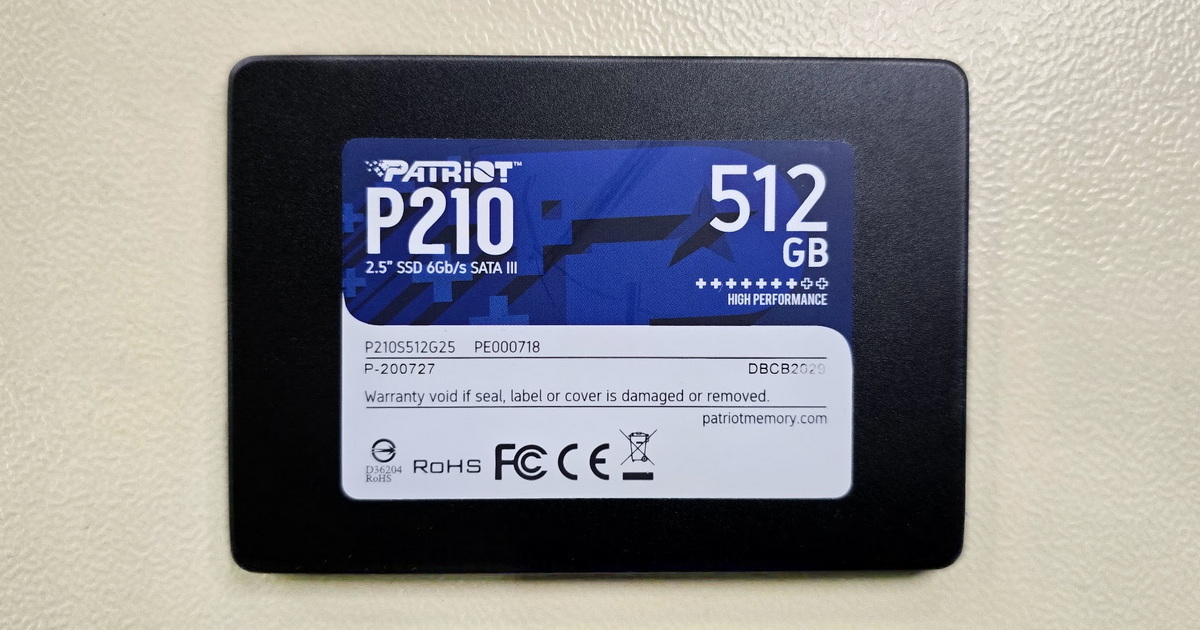
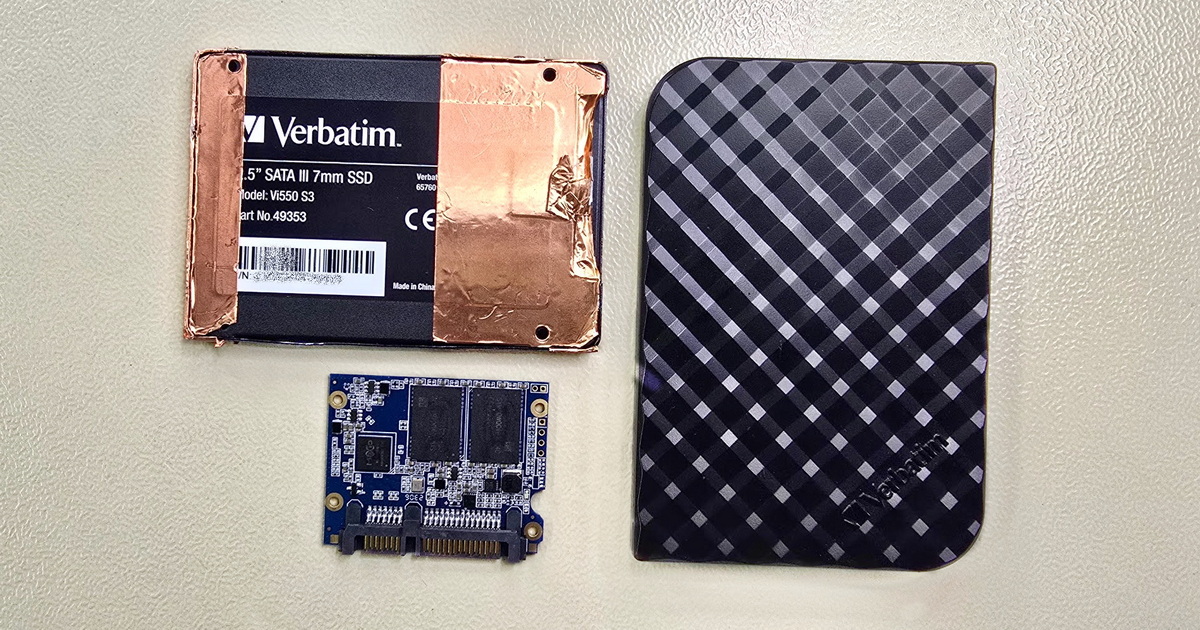
Data recovery from external drives of all brands and form factors. Portable 2.5" and 3.5" HDDs, external SSDs, USB flash drives, and DAS enclosures. Free diagnostics and pickup within the Czech Republic.


External hard drive data recovery is the laboratory process of retrieving files from a portable HDD, external SSD, USB flash drive, or DAS enclosure. We handle software, electronic, and mechanical failures—from a corrupted file system through a faulty USB-SATA bridge or an encryption chip in the enclosure to read heads damaged in a drop. We work with all brands (WD, Seagate, Toshiba, Samsung, SanDisk, LaCie, ADATA, and others), media types (HDD, SSD, flash, DAS), and interfaces (USB-A, USB-C, Thunderbolt). Our long-term success rate is around 95%. Diagnostics are free and non-binding; you only pay if the recovery succeeds.
External drive data recovery is one of the most common types of jobs in our laboratory. An external drive is a composite device—an enclosure with USB interface plus a hard drive, SSD, or flash module inside. This combination introduces failure modes that don't occur with internal drives: faulty USB-SATA bridges, encryption chips in the enclosure, damage from incorrect power adapters, or mechanical damage during transport. Our long-term success rate for external drive data recovery is around 95%.
We offer external drive diagnostics FREE OF CHARGE and without obligation. We keep most of the spare parts needed for data recovery in stock, which allows us to start working on a job within hours. We also offer express service for urgent cases—production data, corporate backups, critical family photo archives. We work with external drives of all brands (WD, Seagate, Toshiba, Samsung, SanDisk, LaCie, ADATA, Transcend, Intenso, Verbatim, Silicon Power, Crucial, and others) and all types (2.5" HDD, 3.5" HDD, external SSD, USB flash, rugged, and DAS).
For an undetermined failure, where the issue could be in the drive itself, the USB enclosure, the cable, the power supply, or even the computer, the best option is our free consultation and diagnostics. Describe the symptoms over the phone—whether the drive powers on, whether the computer detects it, whether it makes any sounds—and we'll advise on next steps. Don't hesitate to contact us; a few minutes on the phone can save you hours of guesswork and, more importantly, prevent steps that could complicate the recovery.
Pricing—I need help identifying the issue
More information—how an external drive works and possible failure causes
Free consultation, diagnostics, pickup
The external drive seemingly behaves normally—it powers on, the computer detects it, but the data is not accessible—or Windows offers to “format the disk.” This issue can have several causes. Let's try to narrow it down:
Does the computer show the correct capacity and model name?
Most often this is a logical failure—a damaged file system (NTFS, exFAT, APFS), a corrupted partition table, a damaged boot sector, or damaged metadata (especially in SSDs). These cases are usually recoverable, often without touching the drive's hardware. However, the same symptoms can sometimes hide a more serious fault—incipient damage to read heads or platter surfaces in HDDs, subtle errors in the drive's service area, or degraded NAND in SSDs. For this reason, it's wise to decline the format prompt, refrain from writing any further data to the drive, and let lab diagnostics determine the actual nature of the fault. More information is available here.
The drive shows a reduced or zero capacity, or even displays an incorrect model name. Cases like this typically require expert lab intervention—a failed USB-SATA bridge in the enclosure, an error in the drive's service area, a PCB electronics failure, severely damaged read heads, or damage to the platters themselves. For external SSDs, the equivalent failures involve a failed controller or damage to the addressing structures in NAND memory. The specific cause and recovery path can only be determined after lab diagnostics.
Pricing—hard drive, external drive (HDD)
More information—resolving software and firmware failures
Free consultation, diagnostics, pickup
Some data was deleted by accident or intentionally, or the entire external drive was reformatted. Otherwise the drive functions normally. Recovery of deleted files is possible in most cases on external HDDs without shingled magnetic recording (SMR)—but the key is to stop using the drive immediately. Every additional write overwrites the sectors where the deleted files were physically stored. With external SSDs and flash drives, the situation is more complex due to the TRIM function, which can permanently erase deleted data within minutes.
Pricing—hard drive, external drive (HDD)
More information—recovering deleted files from an external drive
Free consultation, diagnostics, pickup
Symptoms:
This may be a USB interface failure in the enclosure (faulty bridge chip, broken micro-USB connector, blown TVS diode), an electronics fault on the drive's own PCB, or stuck read heads. With 3.5" external drives, the most common cause is connecting the wrong power adapter—typically a 19V laptop adapter instead of 12V. The overvoltage burns out the protective TVS diode and other components. With 2.5" portable drives, it's usually a burnt-out USB bridge or broken connector. Self-repair attempts can become expensive—take advantage of our free diagnostics.
Pricing—hard drive, external drive (HDD)
More information—why the drive won't start and what to do
Free consultation, diagnostics, pickup
Do not power on an external drive after a drop or impact! Doing so can turn a recoverable case into a complicated one—or worse...
Symptoms:
A drop is by far the most common type of damage in external drives—these devices are routinely carried in backpacks, pockets, handbags, or laptop bags. In a 2.5" external HDD, a drop most often damages the read heads: the slider levitates 3–5 nanometers above the platter during operation, and impact causes physical contact and mechanical damage. With 3.5" desktop enclosures (WD My Book, Seagate Expansion Desktop), a drop is usually more catastrophic—the platters are three times heavier and the shock rating is lower. External SSDs don't suffer mechanical damage to read elements (there are none), but the BGA solder joint between the controller and PCB, or between the USB-C connector and PCB, may crack. Take advantage of our free consultation and diagnostics—diagnosis of mechanical damage is essential to determine the correct recovery procedure.
Pricing—hard drive, external drive (HDD)
More information—recovering an external drive after a drop or impact
Free consultation, diagnostics, pickup
If your drive clicks, grinds, or beeps, disconnect it immediately and do not power it on again! Every additional second of operation may irreversibly destroy data.
Symptoms:
Sound symptoms of an external HDD are the first and most reliable diagnostic signal. Clicking and grinding usually indicate a problem with the read heads or platters. In a minority of cases (~10%), the cause may be the drive electronics. Beeping or faint ticking are typical signs of stuck read heads—do not power on the drive in this state, because the motor may damage the heads further or even tear them off during repeated startup attempts. Unnatural buzzing or vibration may result from a drop, mechanical deformation of internal parts, or, in a minority of cases, a motor breakdown. Motor breakdown in our practice is a minor cause; we usually encounter motor problems combined with other damage. External SSDs and flash drives have no moving parts and operate silently—if your external SSD makes any sound, it's vibration from the surroundings, not a fault.
Pricing—hard drive, external drive (HDD)
More information—what drive sounds mean
Free consultation, diagnostics, pickup
Symptoms:
This type of failure is specific to external drives and does not occur with internal HDDs/SSDs. An external drive contains a USB-SATA bridge (with HDDs and SATA SSDs) or USB-NVMe bridge (with modern NVMe SSDs)—an integrated circuit that translates the USB protocol to the drive's native protocol. The most common bridge chips in WD, Seagate, Toshiba, Samsung, and ADATA enclosures are JMicron (JMS578, JMS580, JMS583), ASMedia (ASM1153, ASM2362, ASM2364), and Realtek (RTL9210). When the bridge fails, the drive itself is completely functional, only inaccessible through the faulty interface. In the lab, we remove the drive from the enclosure and connect it directly via SATA/NVMe to our professional PC-3000 system.
Watch out for encryption chips in premium enclosures: WD My Passport, WD My Book, Samsung T5/T7/T9, SanDisk Extreme V2, Verbatim Fingerprint Secure, and others have a hardware encryption module (AES-256) integrated into the bridge, which encrypts all data on the drive—even if the user never set a password. The encryption key is stored in the bridge memory. If the enclosure electronics fail, the data on the drive inside is not readable without the original bridge, even if the physical drive itself is fine. That's why you should always send the complete device including the original enclosure to our laboratory, even if the enclosure appears visibly damaged.
Pricing—hard drive, external drive (HDD)
More information—USB bridges, encryption chips, and how we handle them
Free consultation, diagnostics, pickup
Symptoms:
Electronic failures of external drives have two typical causes. With 3.5" desktop enclosures (WD My Book, Seagate Expansion Desktop, Intenso Memory Center, Verbatim Store 'n' Save), the most common cause is the user accidentally swapping the power adapter—connecting a 19V laptop adapter or another “similar-looking” adapter instead of the original 12V supply. The TVS diode in the enclosure tries to short the overvoltage, but burns out together with the LDO regulator and sometimes the motor controller. With 2.5" portable drives powered from USB, electronics failures occur with a faulty USB port in the computer, with overvoltage from a thunderstorm transmitted through the USB cable, or simply due to component aging. Each hard drive contains unique service data on its PCB necessary for initialization—simply swapping the PCB for a “matching” one from another drive is usually not enough. With SSDs, the electronics are even more critical, as the controller and power cascade are densely integrated and damage to a single component often means complex micro-soldering repairs.
Pricing—hard drive, external drive (HDD)
More information—drive electronics, PCB, overvoltage
Free consultation, diagnostics, pickup
Do not power on a wet or spilled-on external drive and do not let it air-dry naturally! Corrosion of the electronics continues even after disconnecting power.
Symptoms:
Water and liquids are particularly dangerous to external drives because of corrosion of solder joints and salt residues that conduct electricity even after drying. Sweet beverages (coffee with milk and sugar, juice, soft drinks) are especially destructive—sugar and organic compounds form a sticky layer that prevents subsequent electronics repair. Do not power up a wet drive—short circuits will cause immediate and often irreversible damage. The rice myth doesn't work—rice does not extract moisture from inside a sealed enclosure; it merely sits next to it. Do not use a hairdryer or laundry dryer—high temperature deforms plastic and PCB-soldered parts and drives heat-evaporated moisture deeper into the enclosure. Send the drive to our laboratory in a dry antistatic bag as soon as possible; time matters significantly, as corrosion progresses by the hour.
For fire damage, what matters is whether the drive was actively burning or merely exposed to heat and smoke. Heat above 60 °C starts to deform plastic parts and above 150 °C causes permanent damage to the platter's magnetic layer. Smoke and soot soil the electronics but are usually removable in the lab.
Pricing—hard drive, external drive (HDD)
More information—drive recovery after flood, spillage, or fire
Free consultation, diagnostics, pickup
Symptoms:
External drives are often encrypted—either in software (BitLocker, VeraCrypt, FileVault) or in hardware (WD Security, Samsung Portable SSD, SanDisk Extreme, Verbatim Fingerprint Secure). If you know the password or recovery key, the recovery is straightforward—we open the drive and deliver the data normally. Without a key or password, modern encrypted drives (AES-XTS 128/256) are mathematically unbreakable—by us or any other lab in the world. The same applies to ransomware—most modern families (LockBit, BlackCat, Conti) use strong encryption that cannot be brute-forced.
In some specific cases, recovery is possible: some older ransomware families have public decryptors (see nomoreransom.org); with hardware-encrypted drives with damaged electronics, the key can be extracted from the encryption chip memory inside the enclosure; with BitLocker, the recovery key may be stored in the user's Microsoft account. If you're not sure whether your drive is encrypted, we'll be happy to perform diagnostics and assess the recovery options.
Pricing—hard drive, external drive (HDD)
More information—encryption, ransomware, lost passwords
Free consultation, diagnostics, pickup
An external drive differs from an internal one by one key detail: it includes an extra USB interface (USB bridge chip) that translates the USB protocol into the drive's native protocol (SATA for HDDs and SATA SSDs, NVMe for modern NVMe SSDs). Inside the enclosure, you'll find the same hard drive, SSD module, or flash controller you'd find in a regular computer—plus the enclosure electronics that handle USB communication and power. This split creates specific failure modes: the drive itself can fail, the enclosure electronics can fail, or both can fail at the same time. The following sections describe each scenario in detail.
If you don't know the cause, start with simple diagnostics. Connect the drive to your computer and listen—a healthy 2.5" HDD makes a faint click during initialization and then a quiet hum. A 3.5" HDD has a louder startup—you'll hear the motor, head initialization clicks, and then continuous hum. SSDs and flash are completely silent. If you hear nothing from the drive and the enclosure LED is off, the issue is in the power supply or the enclosure's USB interface. If you hear the motor but the drive stops after a moment—initialization is failing, the drive cannot read its service data.
The second step is checking in the system: Device Manager (Windows) or Disk Utility (macOS) should show the drive. If it appears correctly (model, capacity), the drive is physically working and the issue is most likely software-related (file system, partition table). If you see incorrect capacity or an unknown device, the issue is deeper—it may be a service area failure, a USB bridge issue, or more serious hardware damage.
Drive sounds and behavior are key diagnostic signals for our laboratory. We're happy to discuss the symptoms over the phone—call us at +420 608 177 773 and we'll tell you whether this is something you can address yourself (a logical issue without mechanical symptoms) or whether expert intervention is required.
Free consultation, diagnostics, pickup
Pricing—I need help identifying the issue
An external drive that seemingly behaves normally but with inaccessible data is a very varied case in terms of root causes. Most often it's file system corruption—NTFS (default for Windows), exFAT (cross-platform, large files), APFS (Mac), ext4 (Linux), or, less frequently, FAT32 on older drives. Typical causes of file system corruption include disconnecting the drive during a write (without “Safely Remove Hardware”), power loss during a write, a bad sector in the metadata area (MFT in NTFS, catalog in APFS), or a misguided repair attempt with system tools.
Beware of CHKDSK: Windows offers a “quick repair” via CHKDSK /f or /r, which can drastically worsen the situation. On a drive with damaged metadata, CHKDSK creates new chains, rewrites tables, reallocates bad sectors—and irretrievably destroys data that would otherwise be recoverable. The same applies to “Repair” on macOS (fsck_apfs). The general rule: if you don't have a recent backup, do not run any file system repair and disconnect the drive immediately. In our lab, we create a binary copy (image) of the drive on a separate medium and perform recovery only on this copy, never on the original.
The same symptoms—drive visible in the system, data inaccessible—can also have hardware causes. In external HDDs, the underlying problem is not infrequently service area degradation: a drive's data is split between the user area and service data (translator, defect list, SMART), which the drive needs for initialization. When service data degrades, the drive often still reports correct capacity and model, yet the user area is unreadable, or read attempts slow down rapidly. In other cases the drive shows an incorrect capacity, the model as “BSY” or “0 MB,” or doesn't appear in BIOS at all. Recovery requires the professional PC-3000 tool with a vendor-specific module for the manufacturer (Western Digital, Seagate, Toshiba, Samsung).
A less conspicuous category is incipient mechanical damage—degradation of the platter's magnetic layer, wear on the read heads, or a weak head in the head stack. The drive starts up normally, identifies itself correctly, but reads parts of the data with errors or not at all. Without intervention, the condition typically worsens with every read or write, so for suspicious symptoms (slowing, unreadable files, reported bad sectors) we strongly recommend disconnecting the drive immediately and having the data extracted under lab conditions. In external SSDs, the equivalent category is NAND cell degradation and errors in the FTL mapping—the layer that tells the controller where individual blocks physically reside. When the FTL loses integrity, the controller sees empty or damaged sectors even though data physically exists in NAND; recovery then requires reconstructing the mapping using PC-3000 or, in extreme cases, chip-off.
It is impossible to reliably determine which category a specific case belongs to without diagnostics. Once we have the drive in the lab, we always start with non-invasive evaluation—reading SMART data, checking identification, monitoring the read pattern—and only based on the result do we choose the next step, ranging from software file system reconstruction to service area intervention or, in extreme cases, opening the drive in a clean room.
Free consultation, diagnostics, pickup
Pricing—hard drive, external drive (HDD)
Recovery of deleted files is possible in most cases, but the conditions vary significantly by media type. With external HDDs using conventional magnetic recording (CMR/PMR), the deleted file remains physically on the platter—only its file system record is removed. As long as the area is not overwritten by a new write, the data is recoverable. The key is to stop using the drive immediately—every additional write (copying a new file, installing a program, even Windows starting up with active indexing) overwrites the sectors where the deleted files were stored.
With external HDDs using shingled magnetic recording (SMR)—used in Seagate Backup Plus Slim, Expansion Portable, and some WD Elements—the situation is more complex. Seagate SMR drives use an internal Media Cache and shuffle data between zones in the background as part of an automatic process. Writing a single sector requires rewriting the entire shingled band (tens of MB to GB). Recovered deleted files may physically reside in the cache, in the shingled zone, or partly in both, and recovery then requires reconstructing the SMR translator rather than standard file carving. SMR implementations differ between manufacturers, so we determine the recovery approach only after diagnostics of the specific model.
With external SSDs and USB flash drives, the biggest issue is the TRIM function: when the operating system marks a file as deleted, it sends a TRIM command to the SSD, which the controller physically erases in the background as part of garbage collection. This irretrievably loses the data, typically within minutes to hours of deletion. Post-TRIM recovery is extremely difficult and most often impossible. The only path to success is disconnecting the drive immediately after noticing the deletion—ideally by interrupting power without safe removal, so the controller doesn't get to complete pending TRIM queues.
Amateur recovery software (Recuva, EaseUS Data Recovery, Disk Drill, PhotoRec) can work for simple deletion cases on CMR HDDs without subsequent writes. With SMR drives, SSDs with TRIM, or drives with bad sectors, however, it can make things worse—every read attempt strains the drive and increases the damage. If the data matters, we recommend consultation.
Free consultation, diagnostics, pickup
Pricing—hard drive, external drive (HDD)
An external drive that won't start can have a fault in several layers. The first layer is the enclosure electronics—USB bridge chip, power circuits, TVS diodes. When this layer fails, the drive inside is usually fine and the solution is either to repair the enclosure electronics or to remove the drive from the enclosure and connect it directly via SATA/NVMe interface. The second layer is the drive's own PCB—electronics containing the controller, motor controller, cache memory, and service data (ROM chip or integrated Serial Flash). When the PCB is damaged by overvoltage, moisture, or aging, component repair is necessary, or possibly PCB replacement with ROM chip transfer from the original drive.
Why a “matching” PCB swap from another drive isn't enough: Modern hard drives (since around 2008) contain unique adaptive data, calibration values, and service codes on the PCB, which are specific to the individual unit. This data is stored in the ROM chip on the PCB and must be transferred to the donor PCB; otherwise, the drive won't recognize its own heads and platters after the swap. With SSDs the situation is different—the controller itself isn't unique and can in principle be replaced with a compatible donor controller, but it requires micro-soldering of a BGA component with comparable difficulty to replacing a CPU in a mobile phone.
The third, deepest layer is the drive's internal mechanics—stuck read heads, seized motor, faulty preamp connector, deformation after a drop. Here, only opening the drive in a ISO Class 5 clean room can help—where dust particle concentration is below 3,520 particles per cubic meter (a regular room contains millions). Opening the drive outside a clean room means contaminating the platters with dust and is essentially a guaranteed loss of data.
Free consultation, diagnostics, pickup
Pricing—hard drive, external drive (HDD)
Mechanical damage is the most common cause of failure in external drives. Inside a 2.5" or 3.5" HDD, the platters spin at 5,400 or 7,200 rpm. Above them, the read heads levitate at a distance of 3–5 nanometers—for comparison, a human hair is 80,000 nanometers thick. When the drive is dropped while powered on, the heads come into direct contact with the platters and the slider damages the magnetic layer containing user data. With 2.5" drives, the platters are lighter (lower inertia) and the drives are designed with a higher shock rating (300–400 G operational, 800–1,000 G non-operational)—they often survive a drop from desk height if not in operation. With 3.5" drives, the situation is worse: platters are three times heavier, shock rating is only about 250 G non-operational, and a drop almost always means catastrophic damage.
In the lab, we work with mechanically damaged drives in a ISO Class 5 clean room. We open the drive, inspect the platter condition under a microscope, and decide on the next step based on the extent of damage. For damaged heads, we replace the entire head stack with a donor from stock (we maintain hundreds of compatible donors for the most common models). For damaged platters, we attempt to read data from undamaged zones—in worse cases, we perform a platter transplant, i.e. transferring the platters to a donor chassis.
With external SSDs, mechanical damage is less common but real: a drop can cause micro-cracks in the BGA solder joints between the controller and PCB, between NAND chips and PCB, or between USB-C connector and PCB. Diagnosis is more difficult—the crack is microscopic and the drive may start intermittently. The solution is component re-soldering or controller replacement. As a last resort, the chip-off method comes into play: we desolder the NAND chips, read their contents in a programmer, and reconstruct the data in software using algorithms that emulate the drive's controller and its FTL.
Free consultation, diagnostics, pickup
Pricing—hard drive, external drive (HDD)
The sounds of an external HDD provide precise diagnostic information—each sound type matches a specific fault. Regular clicking (1–2 clicks per second, the so-called “click of death”) arises from repeated attempts of the read heads to find the service area on the platter. The heads move from the parking zone over the platter, fail to calibrate properly, and return back—over and over. The cause is usually mechanical damage to the heads after a drop or degradation of the magnetic layer. Each click is another contact between heads and platter and another bit of damage to the magnetic layer.
Beeping or faint ticking indicates stuck read heads—the heads can't disengage from the parking zone (ramp), the motor doesn't have enough torque to release them. The drive tries to power up repeatedly, the motor briefly engages and stops again. Continuing startup attempts can permanently damage the heads (bending, breaking, tearing off the arm), so it is critical not to power on the drive in this state. In the lab, we proceed in two steps: first, in the clean room, we visually inspect the head condition under a microscope. If the heads are intact, we perform a head release procedure—using a special tool, we carefully release the heads and move them back to the parking zone, after which we can spin up the drive and read the data. If the heads are already deformed, bent, or mechanically damaged on inspection (which is relatively common in practice, as stuck heads typically occur after a drop or impact), the release procedure isn't possible and the heads must be replaced with a compatible donor stack.
Grinding, screeching, metallic sounds are the worst variant—active contact between heads and platter surface during rotation. Every second means scraping off the magnetic layer and generating aluminum dust, which further damages surrounding heads and platters. Disconnect the drive immediately.
Unnatural buzzing or vibration can have several causes: mechanical deformation after a drop (a bent chassis pressing on the spindle motor), a damaged bearing, a snagged preamp connector. Motor failure on its own is a minor cause in our practice—we usually encounter motor problems combined with other damage from a drop. Distinguishing between causes without opening the drive in the lab is not possible.
Free consultation, diagnostics, pickup
Pricing—hard drive, external drive (HDD)
The USB bridge chip is the heart of an external drive's electronics. It translates the USB protocol to the drive's native protocol—SATA for HDDs and SATA SSDs, NVMe for modern NVMe SSDs. When the bridge fails, the drive itself is fully functional, just inaccessible through the faulty USB interface. In the lab, we remove the drive from the enclosure and connect it directly via SATA/NVMe adapter to our professional PC-3000 tool, completely bypassing the bridge.
The problem arises with enclosures with integrated encryption. Premium brands (WD My Passport from around 2011, WD My Book, Samsung T5/T7/T9, SanDisk Extreme V2, Verbatim Fingerprint Secure) have hardware AES-256 encryption integrated into the drive electronics or enclosure. Data on the drive is always encrypted, even if the user never set a password—the key in such cases is stored in the electronics and locked with a default combination. When the electronics fail (overvoltage, water, connector drop), the data on the drive inside is physically readable but without access to the key it is practically unusable. The specific recovery procedure then differs by generation and brand—see the paragraph below.
The recovery for encrypted drives takes one of two paths, depending on device generation. For older external drives (typically WD My Passport and My Book from certain production years), where encryption is handled by a standard USB-SATA bridge in the enclosure, the key is stored in the drive's own service area. If only the bridge in the enclosure is faulty, we can bypass the encryption in the lab by unlocking it with the key from the service area directly via the PC-3000 tool—we remove the drive from the enclosure, connect it via SATA, and decrypt the data without needing the original bridge. This procedure with WD products is something we handle routinely.
For newer devices, the situation is fundamentally different. The drive electronics (or enclosure) contain a unique MCU (microcontroller) that performs the encryption itself, and the key is bound directly to this chip. Without the original chip, the data is permanently lost—no laboratory in the world can recover it. If the original PCB is mechanically damaged (e.g. after a drop or short circuit), we are able to transfer the MCU and other unique components to a donor PCB, but the entire operation is orders of magnitude more demanding than a regular board swap. That's why you should always send the complete device including the damaged enclosure and cables to the laboratory—even if the enclosure is visibly destroyed, the electronics inside may contain the only key to your data. Attempting “to take the drive out of the enclosure” at home for an encrypted device makes the case substantially more complicated.
Enclosures without hardware encryption—WD Elements, WD Easystore, WD Black P10, Seagate Backup Plus, Expansion, Toshiba Canvio Basics/Ready, most ADATA, Transcend, Intenso, Silicon Power, Verbatim Store 'n' Go—are an easier case. We remove the drive from the enclosure (an operation called “shucking”), connect it directly via SATA, and read the data normally.
Free consultation, diagnostics, pickup
Pricing—hard drive, external drive (HDD)
External drive electronics contain several critical components that can fail under overvoltage, short circuit, or lightning strike. Protection elements (typically the so-called TVS diode on the power line) are designed to shunt overvoltage, but under significant overvoltage they themselves burn out and become permanent shorts. When the user connects an incorrect adapter (typically a 19V laptop adapter into the 12V input of a 3.5" enclosure), these protection elements can't keep up and other power cascade components and the drive controller often fail along with them. After such an event, the drive doesn't power on at all.
Repairing electronics after overvoltage is demanding regardless of whether only a few components were damaged or the entire power cascade. Even with seemingly isolated damage (e.g. a single burnt protection diode), we must fully diagnose the drive, verify the state of all power rails, the controller, motor controller, and the drive's service area, identify a compatible donor component from stock, and perform micro-soldering under laboratory conditions. Experience shows that overvoltage often damages components that look fine at first glance—that's why complete diagnostics is necessary, not just “swapping the burnt one.” In more complicated cases, the repair requires complete PCB replacement with ROM chip transfer (and, for newer devices, transfer of other unique components) from the original board, because without unique service data the drive will never initialize.
With SSDs, the electronics are even more sensitive. The SSD controller (typically Marvell, Phison, SMI, Realtek) handles data access and manages the mapping of physical NAND blocks to logical LBAs. The “map” itself (FTL—Flash Translation Layer) doesn't reside in the controller—it's stored in the service area of the NAND chips. The controller is therefore in a sense a replaceable component, and after it has been destroyed by overvoltage it is possible to solder on a compatible donor controller and restore SSD functionality. It is not, however, a “few-minutes” operation—it's micro-soldering of a BGA component with tens to hundreds of pins, where the temperature profile must be precisely maintained, the right flux used, and calibration performed after soldering. The procedure is comparable in difficulty to replacing a CPU in a mobile phone. In cases where controller repair isn't possible (typically when the power cascade is also damaged or the BGA pads are disturbed), the chip-off method comes into play: we desolder the NAND chips, read their contents in a programmer, and reconstruct the data in software using algorithms that emulate the drive's controller and its FTL.
Free consultation, diagnostics, pickup
Pricing—hard drive, external drive (HDD)
Water and liquids damage drive electronics through two mechanisms. The first is immediate short circuit—if the drive is energized at the moment of contact with water, the current closes through the conductive liquid and burns the most vulnerable components (usually TVS, LDO, motor controller). The second, slower mechanism is corrosion—even after drying, salt residues remain on the PCB (from minerals in tap water, salts in sweat, additives in beverages) that conduct electricity and gradually corrode solder joints. Corrosion progresses over hours to days and can complete the damage process even if you turned the drive off immediately.
In the lab, we first disassemble the wet drive—remove the PCB from the enclosure, disconnect the drive from the USB electronics, and carefully rinse everything in demineralized water. Paradoxically, more water is beneficial in the cleaning phase: clean water removes salt residues that cause long-term corrosion. After rinsing, we ultrasonically clean the components in isopropyl alcohol (IPA) and thoroughly dry them under a lamp at low temperature (40–50 °C). Only then do we perform electrical diagnostics and repair.
For drives spilled with sweet beverages (coffee with milk, juice, soft drinks), the situation is more complex—sugar and other organic compounds form a sticky layer that's difficult to remove and may obstruct subsequent solder joint reconstruction. The cleaning process is then more demanding and takes longer, but data recovery is still feasible in the vast majority of cases.
For drives affected by fire, what matters is whether they were actively burning or were merely exposed to heat and smoke. Active burning above 150 °C damages the platter's magnetic layer, and above 300 °C the entire drive deforms and the platters crack. Smoke and soot are usually removable with the same cleaning process as for water. If the drive burned and fire reached inside and the platters are blackened, recovery is limited.
Free consultation, diagnostics, pickup
Pricing—hard drive, external drive (HDD)
External drive encryption exists in two layers. Software encryption takes place at the operating system level—BitLocker (Windows), VeraCrypt (cross-platform), FileVault (macOS), LUKS/dm-crypt (Linux). The key is usually stored in TPM module memory, protected by a user password or biometric authentication. With password loss, the only path to data is the recovery key: BitLocker automatically generates a 48-digit numeric recovery key when encryption is enabled and stores it in the user's Microsoft account or offers it for printing. If you don't know the recovery key, the data is unrecoverable—AES-XTS 128/256 is mathematically unbreakable.
Hardware encryption takes place at the drive or USB bridge level. We encounter it in external drives with WD Security (on WD My Passport and My Book), Samsung Portable SSD (T5/T7/T9), SanDisk Extreme V2, Verbatim Fingerprint Secure. The main risk of hardware encryption is in the binding of the key to specific hardware—if the electronics fail, even a physically healthy drive is unreadable without the original. The specific recovery procedure varies by generation and brand: with older WD drives, where encryption is handled by a standard USB-SATA bridge, we can extract the key from the drive's service area directly via the PC-3000 tool. With newer devices, the key is bound to a unique controller on the PCB, so recovery requires the original electronics, or—in cases of mechanical damage—transfer of unique components from the original PCB to a donor.
Ransomware is a specific category. Modern families (LockBit, BlackCat, Conti, Ryuk, STOP/Djvu) encrypt files with AES-256 and send the key to a C&C server in exchange for ransom. Paying the ransom is highly risky and not recommended—roughly a third of victims receive a non-functional decryptor or nothing after payment. Some older and mid-tier ransomware families have public decryptors published on nomoreransom.org (a project of Europol and IT companies). Our recommendation: 1) disconnect the drive, 2) identify the exact ransomware variant by file extension and README content, 3) check nomoreransom.org. If a public decryptor exists, we can recover the data. If not, a backup from Shadow Copy (if Windows wasn't infiltrated deeply enough) or from cloud backup is usually the only path.
Free consultation, diagnostics, pickup
Pricing—hard drive, external drive (HDD)
The term “external drive” covers several entirely different technologies. They all share a USB interface and portability, but inside they differ significantly in physics and principle. Each type has its own failure patterns, technological challenges in data recovery, and price category. Below we describe the five types we encounter in our laboratory—from classic portable HDDs to small DAS enclosures.
The most widespread type of external drive. Inside is a 2.5" hard drive with a capacity of 500 GB to 5 TB, powered directly from the USB port (5V, typically up to 900 mA on USB 3.x). This category covers most external drives sold—WD Elements, WD My Passport, Seagate Backup Plus Slim/Portable, Seagate Expansion Portable, Toshiba Canvio Basics, ADATA HD710/HD680, Transcend StoreJet, Intenso Memory Case. Average lifespan is 3–7 years depending on usage intensity. Dimensions are roughly 110×80×15 mm, weight 120–180 g, easily fitting into a pocket.
Typical failures of 2.5" external HDDs are drops (the drive gets carried in backpack, pocket), mechanical connector damage (micro-USB is mechanically weak—bends with cable pull), USB bridge damage, and in modern models (since around 2018) complications from shingled magnetic recording (SMR), which in WD Elements and Seagate Backup Plus brings specific issues during deleted data recovery. Shock rating in 2.5" drives is relatively high non-operational (800–1,000 G), but in operation drops to 300–400 G, and a drop from desk height while running usually means head damage. We cover the general principles and procedures of hard drive data recovery in our hard drive data recovery pillar.
Pricing—hard drive, external drive (HDD)
Free consultation, diagnostics, pickup
The larger and more capacious variant. A 3.5" hard drive in a more substantial enclosure, typical capacity 4–22 TB. Requires an external power adapter (usually 12V, 1.5–3 A) because 3.5" drives have higher power consumption than USB can supply. This category includes WD My Book, Seagate Expansion Desktop, Seagate Backup Plus Hub, Seagate One Touch Desktop, LaCie d2 Professional, Toshiba Canvio Flex (selected models), Verbatim Store 'n' Save, Intenso Memory Center. Weight 1–1.5 kg, non-portable—designed for desk use.
Typical failures of 3.5" external HDDs differ from 2.5" models. Most common is damage from the wrong power adapter—the user connects a 19V laptop adapter instead of the original 12V (the connector is physically compatible). The TVS diode burns out, shorts the power line, and the drive then doesn't power on at all. The second typical issue is overvoltage from a thunderstorm, which, if it passes through the adapter, damages the entire PCB. Mechanically, 3.5" drives are more fragile—platters are three times heavier than 2.5" and a drop almost always means head crash. Desktop drives also have long lifespans and we encounter models 10+ years old where the spindle motor bearing fails due to grease aging.
Pricing—hard drive, external drive (HDD)
Free consultation, diagnostics, pickup
An increasingly popular category. An external SSD is either a 2.5" SATA SSD in an enclosure (older models, e.g. Samsung T5 first generation), or an M.2 NVMe SSD with USB-NVMe bridge (modern lineup—Samsung T7/T9, SanDisk Extreme V2/Pro, SanDisk Professional PRO-G40, Crucial X8/X9, ADATA SE760/SE800). Capacities 250 GB to 8 TB, speeds 500 MB/s (USB 3.2 Gen 1) to over 2,000 MB/s (USB 3.2 Gen 2×2 or Thunderbolt). Very compact—Samsung T7 has credit-card dimensions. No moving parts, drop-resistant (rating 1,500–2,000 G).
Typical failures of external SSDs differ substantially from HDDs. Mechanically robust but electronically more sensitive. The most common issues are: faulty USB-NVMe bridge (Realtek RTL9210B, ASMedia ASM2362 chips—with the latter we observe thermal throttling and intermittent disconnects under heavy writes), SSD controller failure (typically Phison, SMI, Marvell—primarily addressed by replacing the controller with a compatible donor through soldering, or with chip-off method involving NAND chip desoldering), hardware encryption (Samsung T5/T7/T9 uses its own “Pablo” controller with integrated AES-256—key binding to specific hardware complicates recovery in case of controller failure), and NAND wear (TLC/QLC NAND has a limited number of P/E cycles). External SSDs usually survive a drop, but the BGA solder joint between controller and PCB or between USB-C connector and PCB may crack. For a full overview of SSD data recovery (TRIM, controller, NAND, encryption), see our SSD data recovery pillar.
Pricing—internal and external SSD
Free consultation, diagnostics, pickup
The smallest and least expensive category of external storage. A USB flash drive contains a NAND memory chip (usually one, several in high-capacity models) and a controller directly on the USB-A or USB-C connector. Capacities from 2 GB to 2 TB, typically 16–256 GB. The most popular brands on the Czech market: SanDisk (Cruzer, Ultra, Extreme Pro), Kingston (DataTraveler), ADATA (UV series), Transcend (JetFlash), Verbatim (Store 'n' Go), PNY, Intenso, Lexar.
USB flash drives fail for different reasons than external HDDs or SSDs. Most often it's physical breakage of the connector (it stays in the computer's USB port or bends), faulty controller (drive is not detected, appears as “RAW” or 0 MB capacity), and NAND wear (cheap flash drives have NAND with low P/E cycle counts). The price category for data recovery differs from HDDs—the flash drives themselves cost only tens to hundreds of crowns, but recovery cost matches complexity (chip-off method for more serious failures). For details on flash drive data recovery, see our dedicated article on flash drives.
Pricing—USB flash drive
Free consultation, diagnostics, pickup
DAS (Direct-Attached Storage) is external storage containing more than one drive, connected directly to a computer (USB, Thunderbolt, eSATA, SAS) without a network protocol. This distinguishes it from NAS, which is a network device with its own operating system. Small DAS enclosures with 1–2 drives are widespread among creative professionals—LaCie 2big (typically 2× 3.5" HDD in RAID 0/1), WD My Book Duo, OWC Mercury Elite Pro Dual, Drobo 5D/5N (although Drobo went bankrupt in 2022). Capacities from 4 TB to 48 TB, Thunderbolt models (LaCie 2big Thunderbolt 3) reach over 1,000 MB/s.
Data recovery from DAS combines the issues of individual drives with RAID configuration reconstruction. Typical scenarios: failure of a single drive in RAID 1 (easily resolved, the second drive has the complete data), failure of two drives in RAID 0 (recovery requires reading both drives), DAS controller damage (requires RAID metadata reconstruction outside the enclosure), or key loss with hardware-encrypted DAS (WD My Book Duo has AES-256). For larger enterprise DAS (8+ drives, SAS interface), we recommend the dedicated RAID array data recovery section.
Pricing—RAID array (also applies to DAS)
Free consultation, diagnostics, pickup
Over two decades of practice, we've recovered data from external drives of all major manufacturers on the European market. Some brands have specific technological characteristics that make data recovery either simpler or more complex—we describe the most common ones below. For some brands, we are gradually building dedicated pages with detailed information on models and the specifics of their failures.
The world's largest manufacturer of external HDDs, the dominant brand on the Czech market. Models: WD Elements (entry-level, no encryption), WD My Passport (portable 2.5" with hardware encryption), WD My Book (3.5" desktop), WD My Book Duo (2×3.5" DAS), WD Easystore (Best Buy exclusive, often shucked), WD Black P10 (gaming portable), WD Black D10 (gaming desktop), WD My Passport SSD, WD Elements SE SSD. With WD My Passport and My Book, it's critical that they always operate with hardware encryption—even if the user doesn't set a password, data is encrypted with a default key. With older WD models, we can extract the key directly from the drive's service area using PC-3000 and perform recovery; with newer models, the original enclosure electronics are required. Newer WD Elements (since around 2018) use shingled magnetic recording (SMR), which complicates deleted data recovery.
Western Digital data recovery →
The world's second-largest manufacturer of external HDDs. Models: Seagate Backup Plus Slim, Backup Plus Portable, Expansion Portable, Expansion Desktop, One Touch, Basic, Backup Plus Hub (desktop with USB hub), Game Drive for PS4/Xbox, Seagate Firecuda Gaming Hub, IronWolf External. Technologically, Seagate differs from WD—it does not use hardware encryption in standard models (Backup Plus, Expansion), which simplifies data recovery. Inside are often Seagate Barracuda, FireCuda, or IronWolf drives. With the Backup Plus Slim and Expansion Portable lines, we encounter the Rosewood model series (ST1000LM035, ST2000LM007)—these drives use shingled magnetic recording (SMR) and have higher failure rates than older PMR models. Some Backup Plus Hub models include a USB-SATA bridge with integrated USB hub, which adds complexity when the bridge fails.
The third major external HDD manufacturer, less common in the Czech Republic than WD and Seagate, but we encounter its models frequently. Models: Canvio Basics, Canvio Ready, Canvio Advance, Canvio Flex, Canvio Partner, Canvio Slim, Stor.E. Toshiba uses exclusively its own Toshiba HDD drives, which simplifies diagnosis (uniform PCB architecture). Hardware encryption is used in Canvio Advance (AES-256), generally not in Basics and Ready. Technologically, Toshiba often prefers MAMR over SMR, which is more favorable for data recovery.
Samsung operates in the external storage category primarily in the external SSD segment. Portable SSD T-series: Samsung T5 (SATA SSD in enclosure, 2017 generation), T7 (M.2 NVMe, 2020), T7 Shield (rugged variant of T7), T9 (current flagship, 2023). Technologically, Samsung uses its own “Pablo” controller with integrated AES-256 encryption, active even without a user password. The internal M.2 modules are proprietary (not separately stocked SKUs), so transfer to a donor PCB is complex. T7 Shield additionally has IP65 dust and water resistance.
In the HDD category, Samsung has not manufactured external drives since 2011, when it sold its HDD division to Seagate. We still encounter older Samsung Portable HDDs (S2 Portable, Story Station, M3 Portable) in practice, but Samsung no longer makes new devices.
The SanDisk brand now belongs to Sandisk Corporation, which Western Digital spun off on February 24, 2025. Until then SanDisk was part of WD, and some external lines share a common technological base. External SSD: SanDisk Extreme Portable SSD V1/V2 (best-selling), SanDisk Extreme Pro Portable SSD, SanDisk Professional G-DRIVE (pro line for creatives), SanDisk Professional PRO-BLADE (modular system). USB flash: Cruzer, Ultra, Extreme Pro (USB 3.2), Ultra Luxe. SanDisk Extreme V2 is interesting—it internally contains a WD SN550E NVMe SSD with integrated AES-256, with hardware encryption permanently active. The Extreme Portable V2 model also had a known firmware bug in some revisions that caused unexpected disconnections and file system corruption (WD released an update).
A premium brand owned by Seagate, specializing in creative professionals (photographers, video editors, musicians). Models: LaCie Rugged (rugged 2.5" with iconic orange rubber bumper), Rugged Mini, Rugged SSD, Mobile Drive, d2 Professional (3.5" desktop with Thunderbolt), 2big (2×3.5" DAS with Thunderbolt 3), 5big (5×3.5" enterprise DAS), 1big. Thunderbolt variants reach speeds of 1,000–2,800 MB/s. Inside the LaCie 2big/5big are Seagate IronWolf or Exos drives. LaCie Rugged has a 2,000 G shock rating and is designed for fieldwork.
A Taiwanese manufacturer with an extensive portfolio of external drives in the mid-price segment. External HDDs: HD710 Pro (rugged, IP68), HD680, HD330, HD650. External SSDs: SE760, SE800, SE880 (gaming), SD810. ADATA often uses proven USB-SATA bridges (JMicron JMS578, JMS580) and internal drives from Toshiba or Seagate. The XPG gaming division has separate models, technically similar.
Besides the main players, we routinely work with other brands. Transcend (StoreJet HDD, ESD SSD)—Asian manufacturer with good mid-tier quality. Verbatim—US brand with European base, models Store 'n' Go Portable, Store 'n' Save desktop, Fingerprint Secure (with biometric reader). Intenso—German distributor, typically rebranded OEM drives. Silicon Power (SP)—Taiwanese manufacturer, Armor (rugged) line. Crucial (Micron)—focused on external SSDs (X6, X8, X9, X10 Pro). Kingston—primarily USB flash, partly SSD (XS2000). PNY—American brand, mostly flash drives. Lexar—memory cards and flash drives, recently entering external SSDs (SL600).
Other brands we encounter in practice: Buffalo (Japanese manufacturer), Freecom (Mitsubishi Kagaku Media), Emtec, Sony (historically, no longer in external drives), TrekStor, G-Technology (professional line, now rebranded as SanDisk Professional, part of Sandisk Corporation), Iomega (historically significant brand, now LenovoEMC).
In the DAS segment: Drobo (American manufacturer famous for BeyondRAID technology, bankrupt in 2022, but devices still in operation—we frequently handle their recovery), OWC (Other World Computing, specializing in Mac users), Synology (BeeStation—new personal cloud category), QNAP (DAS segment more on the periphery).
A separate category is rugged external drives designed for extreme conditions—photographers in the field, film crews, outdoor activities, military use. Models: LaCie Rugged (iconic orange design, 2,000 G shock), ADATA HD710 Pro (IP68, 1,220 G shock), Transcend StoreJet M3 (1,220 G shock), Silicon Power Armor A60/A65 (IP68). Construction uses a rubber dampening layer around a 2.5" HDD or SSD, watertight USB connectors with caps, and a reinforced enclosure. Even with this robustness, they fail—usually mechanically after a fall from greater height (the dampening handles 1.2 m, not 3 m), or electronically after water ingress through an improperly closed USB cap.
Pricing—hard drive, external drive (HDD)
Free consultation, diagnostics, pickup
Disconnect the drive immediately and don't reconnect it. Clicking, grinding, or beeping indicates a mechanical problem inside the drive—usually damaged or stuck read heads. Every additional second of operation may irretrievably destroy data. Don't run data recovery software, don't try freezing the drive or disassembling it yourself. Contact us at +420 608 177 773—describe the sounds over the phone and we'll advise on next steps. Diagnostics is free and non-binding.
It depends on the failure type. With simple file deletion from an external HDD without subsequent writes, software (Recuva, PhotoRec, TestDisk) can work. But with a mechanically damaged drive, a drive with bad sectors, a drive after a drop, or with an SSD with TRIM, running recovery software can significantly worsen the situation. Every read of a damaged drive increases the damage. If you're unsure of the failure type or the data is critical, we recommend consultation first—diagnostics with us is free.
Yes, in most cases. If an external drive doesn't spin, the issue may be in the enclosure electronics (USB bridge, TVS diode), in the drive's own PCB (burnt components, ROM transfer needed), or in the mechanics (stuck heads, seized motor). In the lab, we remove the drive from the enclosure, check the electronics, and proceed based on the diagnosis—PCB repair with ROM chip transfer, head replacement in clean room, or platter transplant. Send us your drive for free diagnostics and we'll tell you how realistic the recovery is.
External drive data recovery starts from CZK 1,500. The exact price depends on the failure type, extent of damage, and required technology (PCB repair, head replacement in clean room, SSD chip-off). Indicative price ranges for individual failure types are available in our pricing. The binding price is set after free laboratory diagnostics—it cannot be accurately estimated by phone or email. You only pay for successfully recovered data; if recovery fails, you don't pay for our laboratory work.
Recovery time ranges from days to weeks depending on case complexity. Simpler logical failures (corrupted file system, deleted data) are usually completed in a matter of days. More complex cases with mechanical damage, head replacement, SSD chip-off, or encryption reconstruction can take several weeks. After free diagnostics, we'll give you a time estimate for your specific case and can offer several processing speed variants—express is more expensive, standard cheaper.
If you know the password or recovery key, yes—recovery is then comparable to an unencrypted drive. Without a key, modern encrypted drives (AES-128/256, BitLocker, VeraCrypt, FileVault, WD Security, Samsung Portable SSD) are mathematically unbreakable. In some specific cases, we can help: with hardware-encrypted drives with damaged electronics, the key can be extracted from the encryption chip memory in the original enclosure; with BitLocker, the recovery key may be stored in your Microsoft account; for older ransomware families, public decryptors exist (nomoreransom.org). Send us your specific case and we'll try to find a way.
For BitLocker, the only path to data is the recovery key—a 48-digit numeric code that Windows automatically generates when encryption is enabled. It's typically stored in your Microsoft account (account.microsoft.com → Devices → Manage recovery keys), in the corporate Active Directory, or you backed it up manually. If you don't have the recovery key anywhere, the data is inaccessible. With WD Security (WD My Passport / My Book), you must know the original password—without it, the software locks the drive permanently and the data remains encrypted. If you know the password but the enclosure electronics is damaged, we can perform recovery on older WD devices by decrypting using the key from the drive's service area via PC-3000; for newer devices, the original electronics is required.
Yes, significantly. External SSDs have no moving parts, so mechanical failures like clicking and stuck heads don't apply. On the other hand, they have specific risks: the TRIM function (permanently erases deleted data within minutes), hardware encryption in most premium models (Samsung T-series, SanDisk Extreme V2), and controller failures, which we address either by replacing the controller with a compatible donor through soldering, or as a last resort with the chip-off method (NAND chip desoldering and software data reconstruction). Success rate for SSD recovery is generally lower than for HDD. If you have a problem with an external SSD, we recommend diagnostics as soon as possible—time is more critical with SSDs.
Yes, always send the complete device—including the damaged enclosure, cable, and power adapter. With premium drives with hardware encryption (WD My Passport, WD My Book, Samsung T5/T7/T9, SanDisk Extreme V2, Verbatim Fingerprint Secure), the encryption key is stored in the enclosure electronics—without the original enclosure, the data is inaccessible, even if the drive itself is fine. With 3.5" desktop drives, we need to see the adapter, because failure caused by the wrong adapter is one of the most common, and the original helps us diagnose the extent of the overvoltage.
We don't recommend it. A drive that has failed has a statistically much higher probability of further failure—returning recovered data to it is like backing up to a time bomb. We deliver recovered data on a new medium (external HDD or SSD) by default, or on your own other functional medium that you send us. If you still insist on recovery to the same drive (economic reasons, sentimental value), we'll do it—but only with a written declaration that we've warned you of the risk.
Because every case is different. Two external drives with the same apparent issue (“the computer doesn't see it”) may have completely different faults inside, and completely different recovery complexity: one may need targeted power section repair, the other may require head replacement in a clean room or platter transplant. The price spread between scenarios is significant. Without diagnostics, even the most experienced specialist can't estimate the price. Indicative ranges are stated in our pricing by failure type. The binding price is set after free diagnostics, and the client has the right to cancel the job—in which case nothing is charged for our work.
In the vast majority of cases yes, but the chance decreases with fall height and impact surface. A drop from desk height onto carpet while powered off usually survives. A drop on a hard floor while running almost always means damage to the read heads and requires intervention in a clean room. A drop down stairs or from a balcony (3+ m height) can cause platter shattering, in which case data recovery is limited. The key is to immediately power off the drive after the drop and not to power it on again—every additional startup attempt with damaged mechanics worsens the state. Send us the drive for diagnostics; with mechanical damage, quick decisions about what to do next are critical to success.
Confidentiality and treating data as sensitive are an absolute given for us. We operate in compliance with GDPR, all work takes place in our own laboratory in Prague—we don't send data abroad, we don't use subcontractors for the actual recovery. When we accept a job, none of the technicians views the data beyond what's necessary (verifying that recovery was successful, identifying the file structure). After delivering the recovered data to the client, we delete the data from our systems. If the nature of the job requires it, or if you simply want confidentiality contractually guaranteed, we'll sign a non-disclosure agreement (NDA) with you—just ask.
Yes. For critical cases (corporate production data, loss of an unfinished project before deadline, wedding photos, etc.), we offer express processing that shortens recovery time to a minimum. The express tariff is more expensive than standard, but allows us to dedicate priority resources to the job—a specialist, laboratory equipment, even outside regular working hours. Weekend service is available by arrangement, typically for acute cases. Call us at +420 608 177 773 and we'll tell you what's realistic for your specific case.
Yes, we accept all standard shipping services. It's important to pack the drive properly—ideally the original packaging or plenty of cushioning material (bubble wrap, foam, paper). A drive in a soft mail envelope (even padded) is not safe. For critical data and high-value cases, we recommend shipping insurance. If you're in the Czech Republic, we offer free pickup by courier—we'll arrange a time and the courier will collect the drive. Pickup from Luxembourg, Germany, Austria, and other EU countries is arranged on request.
If your job nature requires contractually guaranteed confidentiality—typically for corporate data, medical records, or legal materials—don't hesitate to request a non-disclosure agreement (NDA). We'll issue our standard contract immediately; if you have your own NDA template (corporate, legal), send it to us and after approval we'll sign yours.
Is your data insured? Before confirming the order, we'll prepare a “fault confirmation” for you, based on which you can have your insurer approve the data recovery costs and only then confirm the order. The document contains device identification, description of the detected fault, proposed recovery procedure, and price—information that insurers typically require to approve the claim.
EXALAB Data Recovery
Microshop s.r.o.
Pod Marjánkou 4
169 00 Praha 6
Česká Republika
Opening hours:
Monday to Thursday
9.00 - 18.00
Friday 9.00 - 17.30
other opening hours are possible upon agreement
Hotline: +420 608 177 773
Office: +420 233 357 122
E-mail: [email protected]
Hotline: +420 608 177 773
Kancelář: +420 233 357 122
E-mail: [email protected]
Opening hours:
Monday to Thursday
10.00 - 18.00
Friday 10.00 - 17.30
other opening hours are possible upon agreement
EXALAB Data Recovery
Microshop s.r.o.
Pod Marjánkou 4
169 00 Praha 6
Česká Republika