EXALAB Data Recovery
  • Home
  • Data recovery
    • HDD
    • SSD
    • Apple
    • RAID
    • NAS
    • USB drives
    • SD cards
    • Smartphones
  • First Aid
  • Price List
  • FAQ
  • Blog
    • From Practice
    • Explanations and Tips
  • Contact
EXALAB Data Recovery
  • Home
  • Data recovery
    • HDD
    • SSD
    • RAID
    • NAS
    • Apple
    • USB drives
    • SD cards
    • Smartphones
  • First Aid
  • Price List
  • FAQ
  • Blog
    • From Practice
    • Explanations and Tips
  • Contact
English
  • Czech (Čeština)
  • English

Data Recovery from Seagate Drives

Clicking and knocking after a drop, the drive not showing up in the BIOS, an external drive that is no longer detected, files that suddenly vanished… We have years of experience recovering data from every type of storage media. Data recovery from Seagate hard drives and external drives.


Consultation with a technician Consultation with a technician Free diagnostic evaluation Data recovery price list
Free diagnosticsfree consultation, diagnostics, pick-up
You pay only for successno data – no fee
Express recovery 24/7priority service available
Success rate > 95%own EXALAB laboratory

Seagate is one of the most frequently handled brands in our lab. We work with every internal line—BarraCuda, IronWolf / IronWolf Pro, SkyHawk / SkyHawk AI and Exos—2.5" laptop drives, external Backup Plus, Expansion, One Touch and One Touch Hub drives, hybrid FireCuda SSHDs, older GoFlex, and BlackArmor and Personal Cloud NAS units. Diagnostics are free and data recovery starts at CZK 1,500.

On this page

  • When Seagate drives come to us
  • Lines and models we work with
  • What to do when a Seagate drive fails
  • Seagate data recovery specifics
  • Approximate recovery cost
  • Frequently asked questions

When do Seagate drives come to us?

Together with Western Digital, Seagate is one of our most common patients. It shows up in every form—from internal desktop drives in PCs, through 2.5" laptop drives (which Seagate, as one of the few remaining makers of active 2.5" HDDs, still produces), enterprise Exos and Mozaic HAMR storage, to external Backup Plus, Expansion, One Touch and older GoFlex units. We also regularly handle BlackArmor and Personal Cloud NAS devices, even though Seagate has largely exited that segment.

Typical situations in which Seagate drives arrive at the lab:

Mechanical damage and hardware faults

  • A drive after a drop or impact—typically an external Backup Plus, Expansion or One Touch, or a 2.5" internal laptop drive. After a drop it is important not to connect or power the drive; every additional attempt to spin it up can turn a recoverable situation into an unrecoverable one.
  • Knocking, clicking, repeated spin-up attempts—the classic symptom of damaged read heads, and possibly of the platters.
  • The drive does not spin, or makes a faint clicking or ticking—motor failure or a failed fluid dynamic bearing (FDB). On 3.5" drives, stiction (read heads stuck to the platter) occasionally appears; on 2.5" laptop drives this state is somewhat more common because of the lower motor torque.
  • PCB damage after a power surge—burned components, a faulty USB connector on external drives, a scorched protection diode after a lightning strike or the wrong power adapter (typically swapping a 12 V adapter for a 19 V laptop adapter on 3.5" external drives).

Firmware and service data

  • The drive does not appear in the BIOS but spins—on older Barracuda 7200.11 drives the historic BSY bug, on newer models various forms of service-area corruption. The exact cause cannot be told apart without specialized equipment.
  • The drive reports zero capacity—typically a translator failure (the mapping between logical and physical sectors), corrupted drive ID, or damaged system files in the service area.
  • The drive is visible in the computer but returns zeros or unreadable sectors—on models with SMR and the Media Cache architecture (newer 2.5" laptop drives and most current 3.5" BarraCuda), this is most often damage to the internal mapping. The data physically remains on the platters, and on Seagate drives we have the tools to reach it outside the standard path—more in the technical section below.
  • The drive slows down, returns read errors, and SMART attribute 187 (Reported Uncorrectable Errors) keeps rising—on Seagate drives, attribute 187 is one of the most reliable pre-failure signals. If it is rising, it is an indicator that the drive is starting to fail, and it is time to back up your data while you still can.
  • Very slow response on aging drives—the drive reacts extremely slowly, read speed drops to kilobytes per second, the system freezes. Often a combination of degrading heads and early service-data instability.

Logical faults

  • Accidentally deleted files—if you stopped writing to the drive after deletion, the files can usually be reconstructed. With every further write the chances drop, however, because the free space where the data still resides is gradually overwritten. If the drive held valuable data, stop using it and contact us.
  • A reformatted drive—a quick format only rewrites the file-system tables, and the data is usually still on the platters. A full format writes zeros to the drive, and recovery is considerably harder. On SMR drives (most current Seagate BarraCuda and laptop models) even a quick format can trigger internal processes that further degrade the mapping—so it is important not to reconnect the drive after an accidental format and to contact us as soon as possible.
  • A lost or damaged partition—the drive reports as unallocated or RAW. This is usually solvable by rebuilding the GPT or MBR and by searching for file-system signatures.
  • A corrupted file system (NTFS, exFAT, HFS+, APFS, EXT4)—typically after improperly disconnecting an external drive, an interrupted write caused by a power outage, or a careless manual edit of the structures. Recovery proceeds by bypassing the damaged structure and reading the raw sectors directly.
  • Partially overwritten data—some file types (photos, videos) can be salvaged even in a partially damaged state. Others (executables, databases, encrypted archives) typically cannot—though even there we can reconstruct a significant portion of the content.
  • Ransomware or malware—if the data was encrypted by ransomware, the chance of recovery depends on the specific attack variant. In some cases the original unencrypted files are still available in the drive's free space, where they were moved before encryption.

Seagate external drive specifics

  • The drive stopped being recognized after a drop or power surge—there can be several causes. Sometimes only the electronics in the enclosure are faulty and the drive inside is fine; other times the problem is on the drive's own electronics, or even inside the drive itself (for example, stuck read heads). Externally it looks the same. One advantage Seagate has over some competitors is that its external drives are not encrypted by default, so there is no hardware-encryption complication. What exactly failed will only be shown by diagnostics.
  • The 12 V power adapter stopped working (on 3.5" desktop models)—on its own this does not mean a drive problem, but it presents similarly to a PCB failure. In the lab we tell the two apart unambiguously.

Seagate NAS units

  • BlackArmor RAID failure—failure of one of the drives in a RAID 5 array, or firmware bugs on older NAS 440 models. Recovery proceeds by removing the drives and rebuilding the array outside the NAS hardware.
  • Personal Cloud after end-of-life firmware—Seagate ended support for NAS OS 4 in July 2022 and for its cloud services in May 2021. The devices keep working but are security-unpatched and vulnerable to attack. Recovery proceeds by removing the drives and rebuilding the Linux file system in the lab, outside the unit itself.

Seagate lines and models we work with

Seagate today offers a fairly broad portfolio—from consumer desktop and laptop drives, through NAS-tier and surveillance lines, to enterprise Exos and the newest Mozaic platform with HAMR technology. Most of our lab's patients come from the consumer and NAS segments, but we also routinely handle enterprise Exos drives from corporate storage and servers.

Internal 3.5" drives—BarraCuda, IronWolf, SkyHawk, Exos

  • BarraCuda—the consumer desktop line, capacities 1–8 TB, 5400/7200 RPM, currently being extended with helium-filled variants of 16–24 TB. For 3.5" BarraCuda a practical rule of thumb is the cache size: 64 MB cache variants are CMR (for example ST1000DM010, ST2000DM006), while 256 MB cache variants are SMR (device-managed, DM-SMR—ST2000DM008, ST3000DM007, ST4000DM004, ST6000DM003, ST8000DM004). The model suffix alone (DM006/007/008) does not reliably indicate the recording type, because it is not consistent across capacities. We also regularly handle older Barracuda 7200.10 through 7200.14 generations (ST3xxxxxxAS, ST2000DM001, ST1000DM003) from computers built in 2008–2015—those use conventional (CMR) recording.
  • BarraCuda Pro—the historic CMR variant, 2–14 TB, 7200 RPM. A line that is now being wound down, but we still see it as patients from 2018–2021.
  • IronWolf / IronWolf Pro—NAS-tier CMR, 2–24 TB, 5900–7200 RPM, with Seagate's own AgileArray firmware for operation in multi-drive configurations. Mozaic 3+ HAMR variants of 28 TB and 30 TB have been available at retail since mid-2025.
  • SkyHawk / SkyHawk AI—surveillance drives optimized for 24/7 video recording and multiple parallel video streams. Current capacities 4–24 TB, helium-filled, with Seagate's own ImagePerfect firmware.
  • Exos and Exos M—enterprise storage for data centers (capacity drives for continuous operation). Legacy Exos X (PMR, helium-filled, up to 24 TB) and the current Exos M on the Mozaic 3+ (HAMR) platform (28–36 TB), with 44 TB Mozaic 4+ for the largest data-center operators. SATA and SAS variants, also available as SED (Self-Encrypting Drive) and FIPS models.
  • Exos 2X—dual-actuator MACH.2 variants of 14/16/18 TB in which the drive presents as two logical units. A data recovery specific: each actuator serves its own half of the drive, and a physical failure of one of them affects only its logical unit.
  • Older enterprise lines—the predecessors of Exos that we still encounter in servers and arrays: Constellation ES (capacity SATA/SAS, ST*NM* models, 2010–2015), Constellation.2 (2.5" capacity), enterprise 2.5" SAS under the Savvio name, and the older 10K/15K SAS Cheetah line. These drives use the SAS interface and we handle them on the same F3 platform as the newer Exos.

3× photo: internal Seagate drives BarraCuda + IronWolf + Exos

Laptop 2.5" drives (BarraCuda, Momentus)

Seagate is currently one of the few makers that still actively produce 2.5" hard drives. Western Digital largely abandoned this category in 2024–2025 in favor of SSDs, and Toshiba continues with its own MQ04/MQ05 line, but by volume Seagate is dominant. Seagate's current 2.5" drives are sold under the BarraCuda brand (formerly Momentus, and Samsung-derived designs under the SpinPoint brand) and rely on device-managed SMR; older generations from 2012–2016 still used conventional (CMR) recording. We see both in the lab. Note: alongside the commercial name, Seagate also uses internal engineering family designations (the current 2.5" SMR generation is known in service tools as Rosewood and its variants)—but you will not find that on the drive label, and it is just one of many internal families.

  • Current 2.5" SMR—models ST500LM030, ST1000LM035, ST2000LM007, ST2000LM015, ST5000LM000 and the follow-on ST1000LM048, ST1000LM049, ST4000LM024, ST4000LM016 (often with Maxtor M3 branding), ST2000LM009. These are among the most common patients for 2.5" drives in general, because they are produced in huge volumes and are used both in laptops and inside Seagate's external portable drives. They all use SMR and Media Cache.
  • Older CMR generation (2012–2016)—the Momentus and SpinPoint M8/M9 lines under Seagate branding: ST1000LM024, ST1000LM025, ST1000LM014, ST500LM012, ST500LT012, ST500LT007, ST1000LM010, ST750LM022. Many of them come from the original Samsung design (the HN-M prefix in the service data). Unlike the current SMR models they have no Media Cache, so recovery is usually more straightforward.
  • Hybrid FireCuda 2.5" SSHD—ST500LX025, ST1000LX015, ST2000LX001. A combination of a conventional HDD with an 8 GB NAND flash cache. Production ended around 2022, but the installed base in laptops from 2016–2021 is still significant. A specific case for data recovery—if the conventional HDD part fails, the NAND cache is still intact, but the data is split across both layers and the operating system sees the drive as a single device.

These drives appear in our lab both from laptops (a 2.5" internal drive replaced by an SSD, or one that failed after a laptop was dropped) and after being removed from Seagate external enclosures. The internal drive inside a Backup Plus Portable / Slim, Expansion Portable, Ultra Touch and similar is most often one of the current 2.5" SMR models.

2× photo: 2.5" Seagate laptop drives (ST1000LM035 / ST2000LM007)

History and brands under Seagate

Over its history Seagate has absorbed several other hard-drive makers, and their products still occasionally appear in the lab:

  • Maxtor—acquired in 2006. After the acquisition the drives carried the STM prefix (e.g., STM3500320AS) and are technically Seagate platforms. We also encounter older, pre-acquisition Maxtor drives—the DiamondMax lines (DiamondMax Plus 9, DiamondMax 10, models 6L080M0, 6L200P0, 6L300S0) and older ATA drives from 2003–2006. The Maxtor brand was later revived for some external variants (the M3 portable).
  • Samsung's HDD division—acquired in 2011. SpinPoint drives were produced and sold for years after the acquisition: 3.5" desktop models (HD103SI, HD103SJ, HD154UI, HD155UI, HD204UI, HD321HJ) and 2.5" laptop ones (SpinPoint M7/M8, the HM and HN-M prefixes). Many later 2.5" drives were moved to Seagate's ST naming (for example ST1000LM024, ST2000LM003)—these are the same Samsung designs. You can recognize them by the original HN-M designation in the service data.
  • Conner Peripherals—a historic acquisition from 1996, today only relevant as context for very old drives.
  • LaCie—acquired in 2012, but the brand continues independently. Inside LaCie products are Seagate drives.

External 3.5" desktop drives—Backup Plus, Expansion, One Touch Hub

Seagate makes 3.5" external desktop drives under several brands that have rotated over time:

  • FreeAgent and GoFlex Desk (roughly 2007–2012)—a modular dock system, now legacy.
  • Backup Plus Desktop and Backup Plus Hub (roughly 2012–2020)—a classic 3.5" enclosure with a 12 V/2 A adapter and a USB interface. The Hub variant had integrated USB ports on the front.
  • Expansion Desktop (from the early 2010s to the present)—a lower-cost basic line without integrated USB ports, current capacities 4–24 TB.
  • One Touch Hub (since 2022)—the current premium line with integrated USB-C and USB-A ports, capacities 8/14/16/20 TB.

Inside the enclosure, depending on capacity and generation, you will find either a consumer BarraCuda (4–8 TB SMR), a NAS-tier IronWolf, or enterprise Exos drives (10 TB+). For data recovery it matters that the USB bridge in Seagate external drives is a generic chip (typically ASMedia ASM1153E or JMicron JMS578) and does not encrypt the data by default. That means that when the bridge PCB fails, the drive can be removed and usually read over a direct SATA connection. Encryption via Seagate Toolkit is available as an optional feature and is activated only after a user password is set—the vast majority of end users never used it.

2× photo: external 3.5" Seagate drives Backup Plus Hub + Expansion Desktop

External 2.5" portable drives—Backup Plus Portable, Expansion Portable, One Touch, Ultra Touch

Seagate 2.5" portable external drives are powered directly over the USB interface. A timeline of the lines:

  • GoFlex Slim, Backup Plus Slim / Portable, Backup Plus Ultra Touch—older lines up to 2019.
  • Expansion Portable (ongoing, STEA prefix)—a lower-cost basic line.
  • One Touch (since 2020)—with optional AES-256 encryption activated by a user password through Seagate Toolkit.
  • Ultra Touch (since 2023)—the current generation with a native USB-C connector.

The internal drive is in the vast majority of cases one of the current 2.5" Seagate models (see the section on laptop drives). The PCB architecture has changed over time—some older models had the USB connector integrated directly into the drive's PCB (similar to WD My Passport), while newer generations use a separate bridge PCB with a standard SATA interface to the drive inside. In terms of access to the drive, the newer variant is simpler, because the drive can be connected directly over SATA after removal—the data recovery itself, however, then depends on the specific fault.

2× photo: external 2.5" Seagate drives Backup Plus Portable + One Touch / Ultra Touch

What to do when a Seagate drive fails

If your Seagate drive shows signs of failure, follow these rules. They determine the chance of a successful recovery:

  1. Power the drive off and disconnect it. Do not repeatedly connect it to different ports and cables in the hope that it will come back. Every additional spin-up of a damaged drive can turn a recoverable situation into an unrecoverable one. On a mechanically compromised drive, the damage to the platters spreads with every start.
  2. If the drive knocks, clicks or behaves erratically—do not try to start it again. Mechanical noises are a typical indicator of damaged read heads. Repeatedly powering up with damaged heads usually leads to scratched platters and a lower chance of recovery.
  3. If the drive reports as empty or returns zeros, do not run chkdsk, fsck or recovery software. On Seagate drives with SMR and Media Cache, these tools can irreversibly overwrite the internal mapping. Data that would otherwise be recoverable may be permanently lost after a careless attempt.
  4. If the drive does not appear in the BIOS at all, do not attempt "fixes" from YouTube tutorials. For the older Barracuda 7200.11 BSY bug there are plenty of amateur guides involving hot-air-gun work and briefly isolating contacts on the PCB—some of them may work in a pinch, but far more often they lead to permanent damage to the electronics. An operation that looks trivial requires knowledge of the specific drive generation, the firmware revision, and control over the event log.
  5. Never try to "take apart and dry at home" an external drive after a drop or after flood or water damage. Disassembly by an amateur, without knowledge of the specific generation and without a clean environment, can cause further, irreversible damage. A drive in that state belongs straight in for diagnostics.
  6. If you suspect a ransomware infection, disconnect the drive as soon as possible. Some ransomware variants keep encrypting as long as the drive has access to the system. The sooner you disconnect the drive, the larger the portion of the original data that may remain unencrypted.
  7. Myths with no effect, or outright harmful: putting the drive in the freezer, drying it with desiccant in rice, repeatedly reconnecting it in the hope that it will come back. These approaches have no real technical basis and in some cases cause damage that would otherwise not have occurred.

→ More information: HDD repair and data recovery

Seagate data recovery specifics

Seagate drives have several recovery specifics that set them apart from other manufacturers. Some make our work easier (a large community around the F3 platform, the availability of diagnostic procedures); others make it harder (the locked diagnostic port on newer models, the SMR Media Cache architecture). The following section summarizes the most important points.

The F3 firmware platform and what it enables

Most Seagate drives built from 2008 onward use a firmware architecture known as F3. For data recovery, its key property is a diagnostic interface accessible over a serial port directly on the drive's PCB—alongside the standard SATA communication there is a second, vendor-specific path through which we can talk to the drive at the firmware level.

This interface allows us, in the lab, to:

  • Read the drive's event log and determine what specifically failed (a bad sector in the service area, a problem with a specific read head, a firmware-level error).
  • Read and, where needed, modify the drive's system files—among others the translator (the mapping of LBA to physical sectors), defect lists, or the head map; many more service modules are accessible, however.
  • Work with the data directly at the level of physical sectors, outside the standard translator mapping. This is crucial when the translator or the Media Cache mapping has collapsed—over the ATA interface the drive would return zeros, but through the drive terminal we can read directly from the platters.

For this work we use the ACELab PC-3000 platform together with our own scripts and procedures developed for the various Seagate drive generations.

Newer drives and the locked diagnostic port

Drives built from roughly 2015 onward have the diagnostic port locked by default—the terminal lets us reach a level where the drive's information can be read, but the drive refuses to run most commands that work with service data. It reports the status Diagnostic Port Locked.

In technical detail

Unlocking requires a specialized procedure: read the original ROM contents from the PCB, generate a modified version, write it back, and within a single power-off/power-on cycle send the command to unlock the port. After the next power-off the lock is restored—the whole procedure has to be repeated at every power-up. This has a practical consequence: even in a simpler case (for example a service-area failure where it is enough to rewrite a few system files) the procedure has to run through the unlock, the work with the service data, and only then the creation of a sector-by-sector image of the drive.

We handle this procedure on the ACELab PC-3000 platform, and on some generations with our own modifications or scripts. On the very newest Seagate generations (Mozaic HAMR and some enterprise SED models) the situation is even more complicated—part of the critical parameters is integrated directly into the main MCU chip, and the combination of the lock, SED and integrated firmware requires specialized procedures that the data recovery community is continuously working on. In our lab we handle these cases individually, and on some of the newest models we tell the client in advance that standard procedures may not yet be fully established.

ROM, PCB and donor drives

A Seagate drive's service data is split between the ROM on the electronics (PCB) and the service area directly on the drive's platters. This split is fundamental for recovery: on Seagate, the critical adaptive parameters (read-head calibration, the head map, microjog offsets) live primarily in the service area on the platters. The ROM mainly holds the drive's unique identification data, handshake keys, and a minimal boot loader.

This architecture has practical consequences for cases of electronics failure:

  • On older models (roughly up to 2014), a PCB failure could in some cases be addressed by swapping the board for a donor and transferring the original ROM. It requires an exactly matching model, PCB generation, firmware revision and site code—with any deviation, the drive will not initialize after the swap.
  • On newer models the situation is more complex. It requires working with the ROM, the diagnostic-port unlock, and the service area on the platters all at once. It is often a procedure that takes several hours of hands-on work with the drive.
  • On the newest models, part of the adaptive data is integrated directly into the main MCU chip. Simply swapping the PCB is not enough in such cases—in theory the MCU would also have to be swapped, but it is tied to unique data that cannot easily be transferred. We handle these cases individually.

For the reasons above, we strongly advise against experimenting with a PCB swap or a ROM transfer on your own. An operation that looks trivial (swapping two identical-looking boards) can cause irreversible damage on newer drives. As part of the free diagnostics we determine exactly what type of intervention the drive needs—and only then do you decide whether to proceed with recovery. We keep thousands of donor drives and components in stock, so for common models we have parts immediately available; for newly released lines we source from trusted suppliers.

SMR recording and the Media Cache architecture

Seagate uses SMR (Shingled Magnetic Recording) in the vast majority of consumer 2.5" drives (newer 2.5" laptop drives) and in most consumer 3.5" BarraCuda models from 2017 on. Enterprise Exos M drives on the Mozaic 3+ (HAMR) platform have an SMR variant intended for large data-center operators—we do not yet encounter it in everyday jobs.

To understand why Seagate drives can return zeros or appear empty, it helps to know the principle:

  • SMR recording works by overlapping the individual tracks on the platter like shingles on a roof. This achieves higher write density, but with a limitation—individual sectors cannot be rewritten without affecting the neighboring ones.
  • To work with ordinary operating systems, the drive uses an internal mapping layer called Media Cache—all data first goes into a conventionally written area (a CMR-like cache zone), from which the drive's controller gradually moves it, in the background, into the main SMR data space.
  • The mapping between the cache and the final storage is maintained in the Media Cache Management Table (MCMT), stored in the drive's service area. If the MCMT is damaged, the controller loses track of where the data physically lies—and externally this shows up as the drive returning zeros or unreadable sectors, even though the data itself is physically still on the platters.

1× illustration: the SMR principle (shingled recording) vs. CMR—comparison diagram

In technical detail

This state is solvable in the lab—on Seagate drives we have access to the service data through the F3 platform, we can read the surviving copies of the MCMT (a drive typically keeps two copies), in some cases reconstruct it from the available fragments, and after restoring the map read the data. The key point, however, is that the standard translator-regeneration commands that work on older Seagate drives are destructive on drives with Media Cache—they overwrite the MCMT with an empty table and the data is lost for good. That is why we repeatedly warn against amateur procedures based on generic guides.

→ Detail: SMR—the hidden feature of some WD, Seagate and Toshiba drives

The historic Barracuda 7200.11 BSY bug

In 2008–2009 a firmware bug affected the Barracuda 7200.11 line (models ST3500320AS, ST3500620AS, ST31000340AS, ST31500341AS and others—over 15 SKUs in total, with firmware revisions SD15, SD17, SD18, SD19 and AD14). Maxtor drives with the STM prefix built on the same platform were affected the same way.

The cause was purely software—a bug in the handling of the internal event log meant that, after a certain type of system-file corruption, the drive stopped completing its boot sequence and got stuck in a permanent BSY state. The symptom is unmistakable: the drive spins, but does not appear in the BIOS at all.

For data recovery it is important that the data is intact—the bug affects only the boot sequence, not user data. Recovery is a firmware-level fix through the diagnostic terminal (clearing the event log and regenerating the translator), without the need to open the drive or change hardware. We still encounter these drives occasionally—typically as patients from archival backups or from long-inactive systems from the 2008–2010 period.

1× photo: PC-3000 setup with an F3 terminal connection to a Seagate drive

Approximate cost of Seagate data recovery

The final cost of recovering data from a Seagate drive depends on the drive type, the nature of the fault, and the extent of the damage. For common Seagate internal and external HDDs the price is in a similar range to other brands; for drives with a locked diagnostic port, for the SMR family with a damaged Media Cache, for helium-filled Exos enterprise drives, or for newer Mozaic HAMR models, the complexity may be higher. We always set the specific price only after free diagnostics—you know in advance how much the recovery will cost, and only then do you decide whether to approve it.

Current prices for the individual media types are in the pricing list, and more detailed information about the recovery process is on the individual pillar pages:

  • Current data recovery pricing—indicative ranges by fault type and media.
  • Data recovery from hard drives (HDD)—complete information for Seagate internal drives and classic external HDDs.
  • Data recovery from NAS—for Seagate BlackArmor, Personal Cloud and other network storage.

Diagnostics are always free and non-binding. If data recovery is not technically possible, or you decide not to approve the quote, you pay nothing for the diagnostics or the recovery—only the return shipping of the drive, if applicable.

Frequently asked questions about Seagate data recovery

My external Seagate Backup Plus, Expansion or One Touch is unresponsive. Can the data be recovered?

In most cases the data can be recovered, but there can be more causes than meet the eye. Sometimes only the electronics in the plastic enclosure are faulty (the USB connector, capacitors after a power surge, or, on 3.5" desktop variants, the power adapter) and the drive inside is fine. But the fault can also be on the drive's own electronics (the PCB), or even inside the drive—for example, stuck or damaged read heads. Externally it looks the same, and ordinarily not even a more experienced user or IT technician can tell the difference.

So bring or send the drive in for free diagnostics—in the lab we determine exactly where the problem is and propose a procedure accordingly. It is better not to take the drive out of the enclosure yourself: on some generations the enclosure is glued or welded, and careless disassembly can damage both the connector and the drive inside.

My Seagate drive clicks, knocks or won't spin up. What should I do?

Power the drive off and do not turn it on again. Knocking or clicking is a typical symptom of damaged read heads, often after a drop or impact. Every further attempt to start it with damaged heads usually leads to scratched platters and lowers the chance of a successful recovery. On 2.5" laptop drives the situation is even more delicate—the mechanism has a lower tolerance.

With symptoms like these (clicking, knocking, the drive failing to spin up), send or bring the drive in for free diagnostics at our EXALAB lab. Recovering data from mechanically damaged drives is one of the things we handle routinely.

My Seagate drive appears empty—the files are gone but the capacity is correct. What does that mean?

A fault like this can be related, for example, to Media Cache damage, or more generally to a fault in the drive's service data. The drive is physically functional and the capacity is correct, but the computer has lost track of where the data lies on the platters and returns zeros from the default state of the translator (an important service module of the drive).

The key thing is not to try chkdsk, format or recovery software—these tools can irreversibly worsen the state. We have full support for most current and older Seagate drives, and a problem like this can be solved in the lab. The data is still physically on the platters, provided nothing has been written after the problem arose—which is why it is important not to reconnect the drive after this symptom appears and to contact us as soon as possible.

I accidentally deleted important files or formatted the drive. What now?

Stop using the drive and do not reconnect it to the computer as storage. After deletion or a quick format the data physically remains on the drive until it is overwritten by new data. The chance of a successful recovery drops with every further write.

Be especially careful with newer Seagate drives (most current models and all 2.5" laptop ones): these drives use a recording method in which even simply connecting them to a computer triggers internal background operations that can, in some cases, affect the deleted data. A full format of such a drive significantly reduces the chance of recovery. So after a deletion or format, it is better not to connect the drive at all.

What to do: physically disconnect the drive, contact us, and we will arrange free diagnostics. If recovery is technically possible, you will receive a specific quote—and only then do you decide.

I have an older Seagate drive (Barracuda 7200.11) and it suddenly won't show up in the BIOS. Can it be fixed?

Very likely yes. This description matches the classic Barracuda 7200.11 BSY bug from 2008–2009. The drive spins, but the system does not see it at all. Recovery is a firmware-level fix through the diagnostic terminal, and the data stays intact—the bug affects only the boot sequence, not user data.

An important warning: there are amateur guides circulating online involving hot-air-gun work and isolating contacts on the PCB, with which users attempt their own fix. Some of them work, but far more often they lead to damage to the electronics that then requires a more expensive recovery. If you have a drive from this generation with this symptom, get it to us—the procedure is standard and we handle most of these drives routinely.

My Seagate NAS (BlackArmor, Personal Cloud) has stopped working. Can the data be retrieved?

In most cases yes. Recovery proceeds by removing the drives from the unit and rebuilding the file system (typically Linux EXT3, EXT4 or XFS) in the lab, outside the original device. For BlackArmor RAID 5 configurations we rebuild the RAID array from the metadata on the drives; for Personal Cloud variants it is a standard Linux file-system recovery.

Seagate ended support for NAS OS 4 (the Personal Cloud firmware) in July 2022 and for the Seagate Access cloud services in May 2021. If your Personal Cloud showed update or vulnerability problems after that date, that is a normal state—the device keeps working but its firmware is no longer updated. It has no effect on recovery; the data is stored on the drives in the standard way.

Related information and case studies

For deeper context we recommend several of our pillar pages:

  • Data recovery from hard drives (HDD)—a complete guide to recovering data from internal and external HDDs of all brands.
  • Data recovery from NAS—for Seagate BlackArmor, Personal Cloud, Synology, QNAP and other network storage.
  • Data recovery from RAID arrays—relevant for Seagate drives in multi-drive configurations, BlackArmor RAID 5, and Exos 2X dual-actuator.
  • HDD repair—procedures and options for repairing hard drives.
  • SMR—the hidden feature of some WD, Seagate and Toshiba drives—an explanation of the shingled recording that Seagate uses on most consumer drives.

📖 From our practice

  • Opened by an amateur, passed through another lab's diagnostics, then it came to us. Data recovery from a 5TB Seagate hard drive.
    Opened by an amateur, passed through another lab's diagnostics, then it came to us. Data recovery from a 5TB Seagate hard drive.

    Media: Seagate ST5000LM000 (2.5" hard drive)
    Capacity: 5 TB
    Problem: Mechanical damage to the read heads (likely after a drop), worsened by earlier inexpert handling
    Solution: Replacement of the damaged read heads, modification of the service data at both the electronics and platter level
    Result: Approximately 90% of the data recovered—more than 3 TB of files

    Read more →
  • Data Recovery from Seagate Drive. Failed to Start After Power Outage
    Data Recovery from Seagate Drive. Failed to Start After Power Outage
    Hard drives have been storing our data for decades. This particular one served well for over 10 years, and if not for an unexpected power failure disrupting the symbiotic hum of its read heads and…
    Read more →
  • Data Recovery from an External Drive. Seagate Drive Worked in Axagon Box Until It Fell
    Data Recovery from an External Drive. Seagate Drive Worked in Axagon Box Until It Fell
    After upgrading the notebook, this Seagate hard drive was placed in an external box and used as external storage. A fall proved to be its downfall; it was not completely destroyed, but it did not…
    Read more →
  • Záchrana dat z SSHD Seagate. Hybridní mezičlánek HDD a SSD
    Záchrana dat z SSHD Seagate. Hybridní mezičlánek HDD a SSD
    SSHD je hybridní disk, v němž hlavní roli hraje klasický pevný disk (HDD) a jeho vlastnosti doplňuje a rychlost zvyšuje SSD malé kapacity, které zde slouží jako cache pro často používaná data. Tyto…
    Read more →
  • Záchrana dat z 4TB disku Seagate. S použitím čtecích hlav z 5TB verze
    Záchrana dat z 4TB disku Seagate. S použitím čtecích hlav z 5TB verze
    Obnova dat z disků značky Seagate je v našem oboru každodenním chlebem. Disky s větším počtem datových ploten a čtecích hlav mohou být náročnější.
    Read more →
Zobrazit všechny články →

Need to recover data from a Seagate drive?

Send us your drive for free diagnostics—within the Czech Republic we will arrange free pickup as well. After diagnostics you will receive a specific quote, and only then do you decide whether to proceed with recovery. You pay only for successfully recovered data.

Contact us Pricing

From our blog

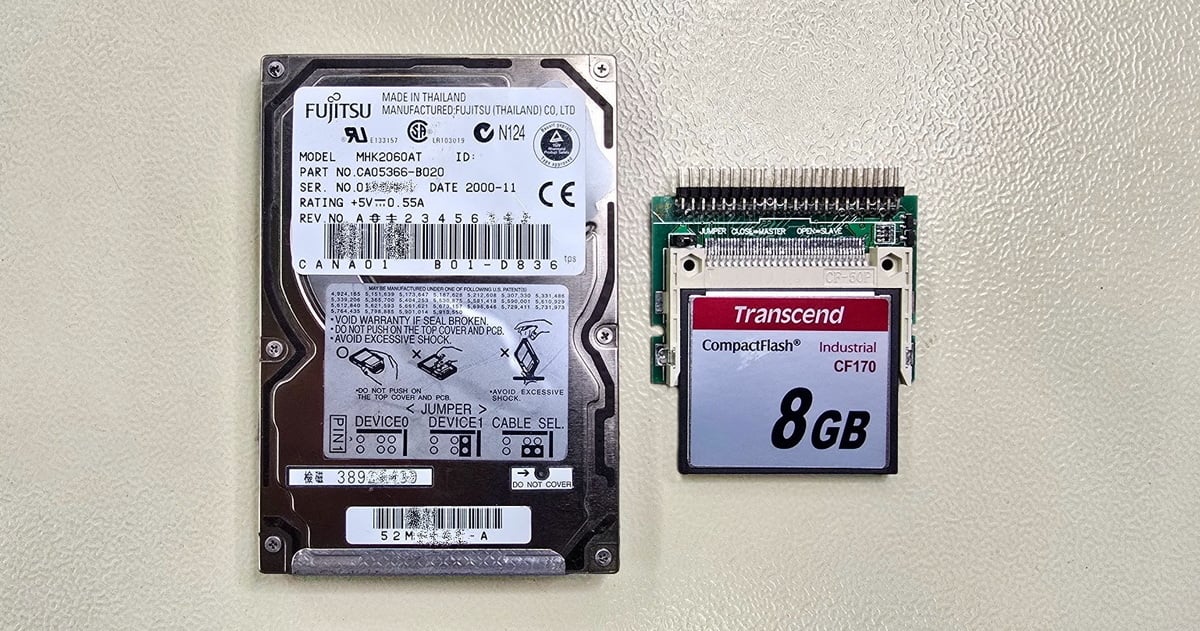
  • Fujitsu MHK2060AT hard drive and a Transcend CF170 Industrial 8 GB CompactFlash card in an IDE adapter

    Hard Drive from a CNC Lathe: Data Recovery and Replacement with an Industrial CF Card

    Read more
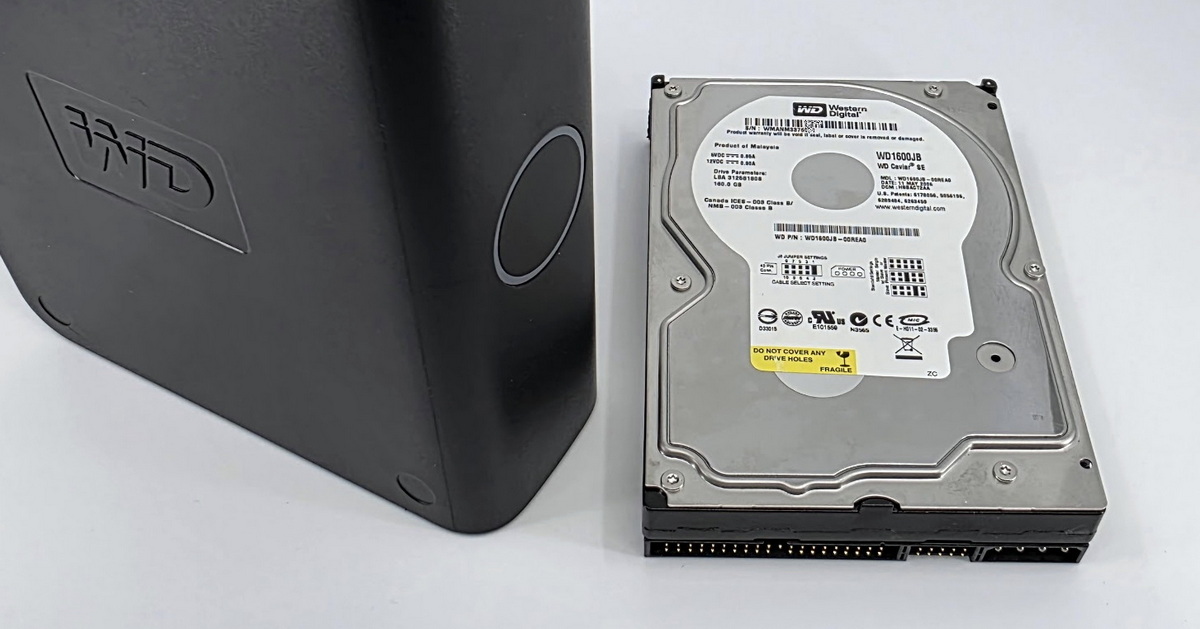
  • Amateur drive opening – WD My Book data recovery after previous intervention

    When a DIY "repair" causes more damage than the original failure

    Read more
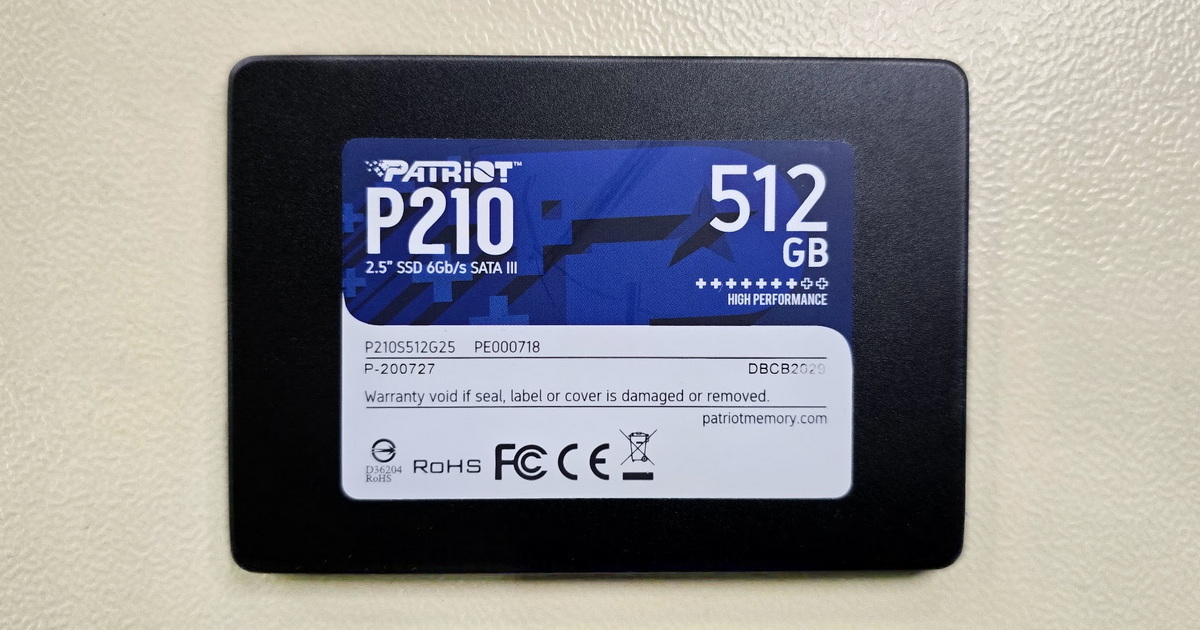
  • Patriot P210 512GB – When an SSD Reads Half a Gigabyte and Then Freezes

    Patriot P210 512GB – When an SSD Reads Half a Gigabyte and Then Freezes

    Read more
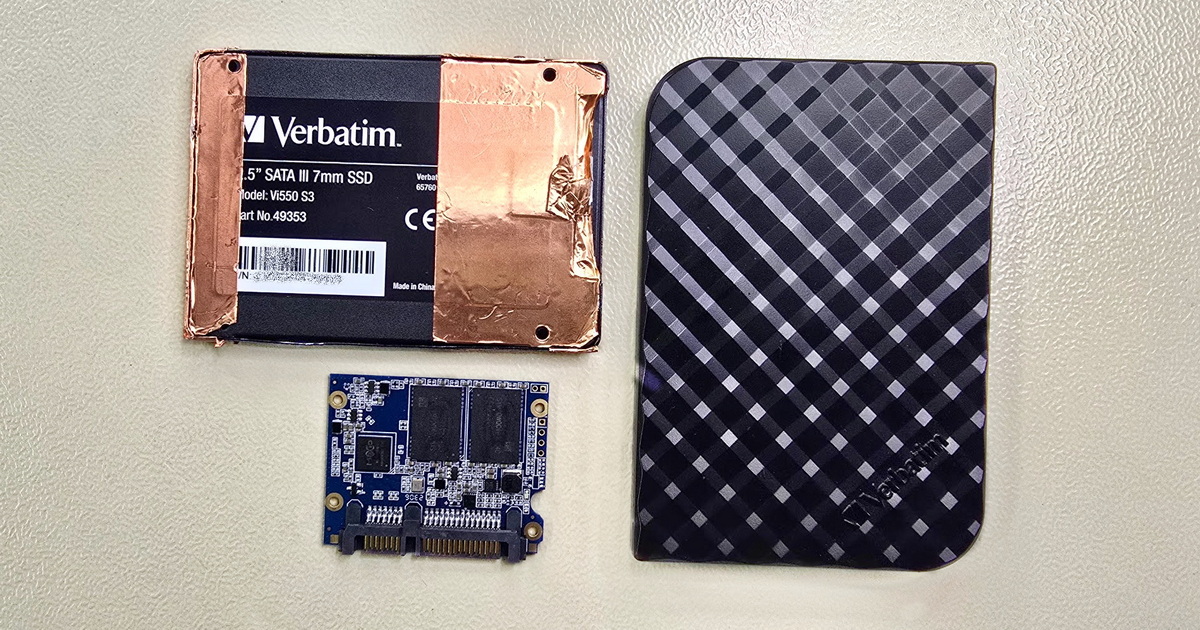
  • Verbatim SSD with Maxio MAS1102B Controller

    Verbatim Vi550 S3 SSD with Maxio Controller – When the Standard Approach Isn't Enough

    Read more
  • Ransomware a záchrana dat – co reálně funguje a kdy je pozdě

    Ransomware and Data Recovery – What Actually Works and When It's Too Late

    Read more
  • Data Recovery from Samsung Galaxy S23 Ultra after Motherboard Failure

    Data Recovery from Samsung Galaxy S23 Ultra after Motherboard Failure

    Read more
  • Forgotten Data on a Forgotten Interface

    Forgotten Data on a Forgotten Interface

    Read more
  • HDD Data Recovery – When Software Helps and When to Call the Experts

    HDD Data Recovery – When Software Helps and When to Call the Experts

    Read more
  • Western Digital My Cloud NAS with open drive bays and two WD Red Plus HDDs installed

    Formatted disk in RAID 1 and a NAS that stopped working

    Read more

Contact

EXALAB Data Recovery
Microshop s.r.o.
Pod Marjánkou 4
169 00 Praha 6
Česká Republika

Opening hours: 
Monday to Thursday
9.00 - 18.00
Friday 9.00 - 17.30
other opening hours are possible upon agreement

Hotline: +420 608 177 773
Office: +420 233 357 122
E-mail: [email protected]

Contact

Hotline: +420 608 177 773
Kancelář: +420 233 357 122
E-mail: [email protected]

Opening hours: 
Monday to Thursday
9.00 - 18.00
Friday 9.00 - 17.30
other opening hours are possible upon agreement

EXALAB Data Recovery
Microshop s.r.o.
Pod Marjánkou 4
169 00 Praha 6
Česká Republika

FILE RECOVERY MEDIA CITIES FAQ ABOUT US TESTIMONIALS PARTNER PROGRAM GLOSSARY CONTACT TERMS AND CONDITIONS GDPR COOKIES QUALITY RATING OF OUR SERVICES JOB OPPORTUNITIES COOKIES SETTINGS

Data recovery from all types of storage media Czech Republic.

© 2006-2023 FF & Microshop Česká republika