A laptop hit the floor and the drive is clicking, an external Canvio drive is no longer detected, the drive does not show up in the BIOS, files suddenly vanished… We have years of experience recovering data from every type of storage media. Data recovery from Toshiba hard drives and external drives.


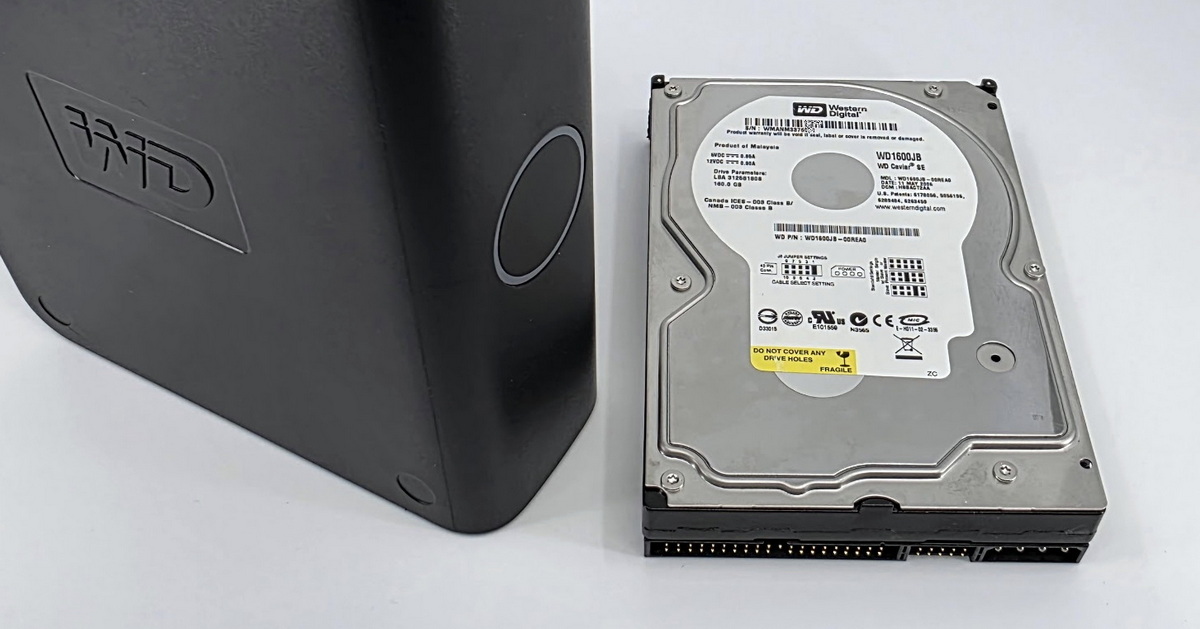
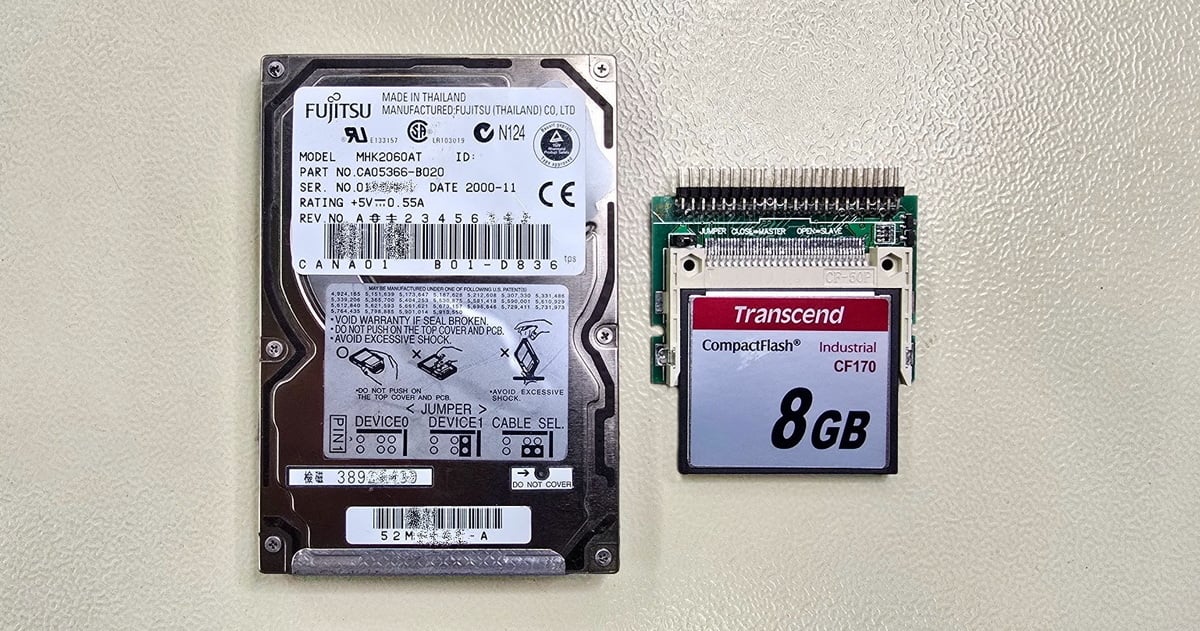
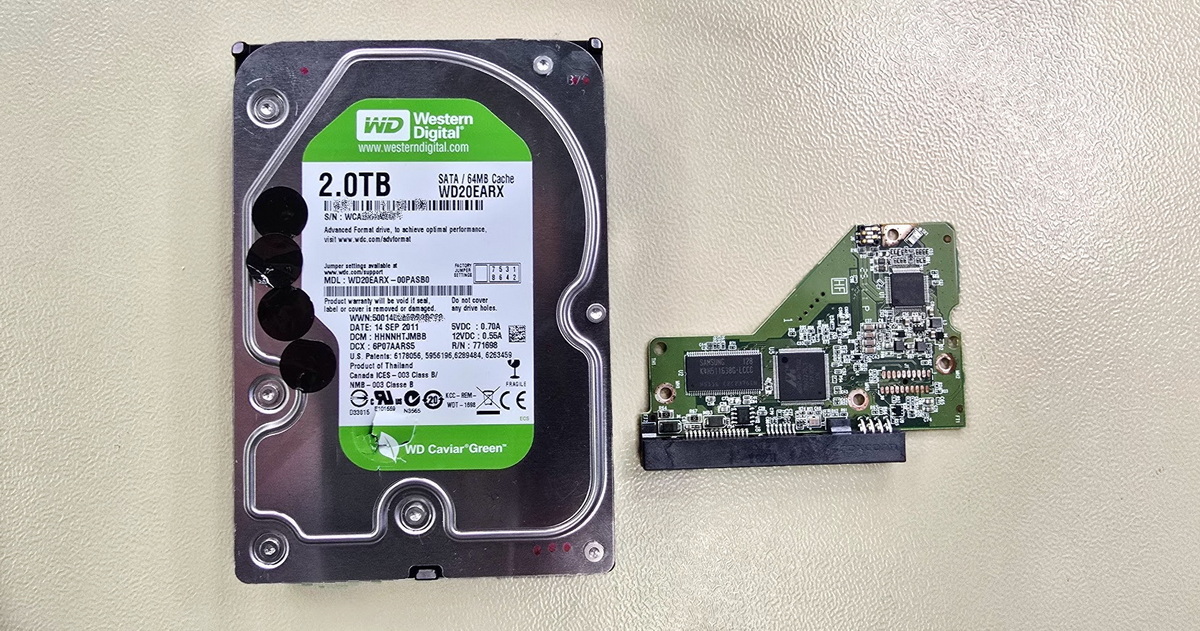
Toshiba is, alongside Western Digital and Seagate, one of the three remaining hard-drive manufacturers, and we recover data from Toshiba drives practically every day. We work with every internal line—P300, X300, N300, S300 and the enterprise MG series—with 2.5" laptop drives MQ01, MQ04 and L200 (Toshiba is among the most common OEM drives in laptops), and with external Canvio Basics, Advance, Flex, Ready, Gaming and Slim drives. Toshiba drives are also found inside other brands' external drives (for example ADATA). We also see older drives from the original Fujitsu production. Diagnostics are free and data recovery starts at CZK 1,500.
Toshiba shows up in the lab in two main forms. The first is 2.5" laptop drives—Toshiba has long been one of the largest suppliers of drives to laptop manufacturers, so a large share of the internal drives in laptops from the past ten to fifteen years is theirs. The second is external portable Canvio drives, which have the very same 2.5" drive inside. The same 2.5" Toshiba drives also turn up inside the external drives of other brands that do not make drives themselves (for example ADATA). Alongside these, we handle desktop 3.5" drives (P300, X300), N300 NAS drives, S300 surveillance drives, and enterprise MG-series storage from servers and disk arrays.
Typical situations in which Toshiba drives arrive at the lab:
→ More on this: Data recovery from NAS and data recovery from RAID arrays.
Toshiba today offers a fairly clear portfolio—from consumer desktop and laptop drives, through NAS-tier and surveillance lines, to the enterprise MG series on the FC-MAMR platform. Most of the patients in our lab come from the laptop and external segment (2.5" drives and Canvio), but we routinely handle desktop, NAS and enterprise drives as well.
3× photo: internal 3.5" Toshiba P300 + N300 + MG enterprise drives
Laptop 2.5" drives are the most common group of Toshiba patients in our lab. Toshiba has long been one of the largest suppliers of 2.5" drives to laptop makers, so a large share of the drives in laptops from Dell, HP, Lenovo, ASUS, Acer and others is in fact made by Toshiba. The same drives are used inside external portable Canvio drives.
These drives show up in our lab both from laptops (the internal 2.5" drive was replaced by an SSD, or it failed after the laptop was dropped) and after being removed from external Canvio enclosures. The inner drive in a Canvio Basics, Advance, Slim and similar is most often one of the current MQ04 models.
2× photo: 2.5" Toshiba laptop drives (MQ04ABF / L200)
Canvio is the marketing name for Toshiba's external drives. The vast majority are 2.5" portable drives powered directly from the USB interface. The current and recent lines:
The inner drive is in the vast majority of cases one of the current 2.5" Toshiba models (see the laptop-drive section). The USB bridge in Canvio drives is a generic chip that does not encrypt the data in hardware by default. This means that if the bridge or the USB connector fails, the drive can usually be connected directly over SATA once it is removed from the enclosure—but the recovery itself then depends on the specific fault of the drive.
2× photo: external Toshiba Canvio Advance + Basics / Slim drives
Toshiba has a long history in storage and several key acquisitions whose products still show up in the lab:
If your Toshiba drive shows signs of a fault, follow these principles. They determine the chance of a successful data recovery:
→ Further information: HDD repair and data recovery
Toshiba drives raise several specific considerations from a data-recovery standpoint. The very high share of 2.5" laptop drives means that a large share of jobs involve mechanical damage after a drop; SMR on the laptop and selected desktop models adds a layer of internal mapping that has to be respected during recovery. The following section sums up the most important points.
Toshiba drives use their own firmware architecture, in which the service data is split between the ROM on the electronics (PCB) and the service area directly on the drive's platters. The key module is the translator—the table that maps logical addresses (LBA) to physical positions on the platters. If the translator or another critical service module is damaged, the drive does spin up, but over the standard SATA interface it returns zeros or reports zero capacity—even though the data physically remains on the platters.
In technical detail
Working with Toshiba drives at the firmware level is done through the drive's technological (service) mode. In it, the system modules can be read and, if needed, modified—among them the translator, the defect lists, or the head parameters. For this we use the ACELab PC-3000 platform with its Toshiba module (technological mode, “Techno Mode”), together with our own hardware and software tools developed in-house at EXALAB for specific drive families. The practical benefit is that on a drive with a damaged translator we can read the data directly from the physical sectors, outside the damaged mapping, and only then assemble a sector-by-sector copy of the drive from which the data is extracted. Any changes to the service area are written only after a backup of the original state has been made.
Toshiba uses device-managed SMR (Shingled Magnetic Recording) on all laptop drives of the MQ04 and L200 lines, on the 3.5" desktop P300 in its 4 TB and 6 TB variants, and on selected surveillance models. The N300 NAS drives, the high-performance X300, and the enterprise MG series, on the other hand, use conventional recording (CMR) and this issue does not concern them.
To understand why SMR Toshiba drives can return zeros or appear empty, it helps to know the principle:
1× illustration: the SMR principle (shingled recording) vs. CMR—comparison diagram
In technical detail
This state is usually solvable in the lab. Through the drive's technological mode (the Toshiba module in the PC-3000) we have access to the service data and the translator, and we can reconstruct the mapping. What is specific to Toshiba, however, is that the SMR family (especially the laptop MQ04 line) builds its mapping table dynamically, and the drive itself continuously moves data from the media cache into the shingled zones in the background. On a failing drive these built-in processes overwrite, at every power-up, exactly the data we are trying to recover—which is why, on a Toshiba SMR drive, it is essential to apply a hardware write-protect before connecting it and only then create a sector-by-sector copy. For the same reason, running chkdsk, a format, or recovery software (which force writes) on a drive that has started to appear empty is destructive.
→ Detail: SMR—the hidden feature of some WD, Seagate and Toshiba drives
From a data-recovery standpoint, external Canvio drives differ from some competing external drives in one essential way: the USB bridge in Canvio drives does not encrypt the data in hardware by default. The drive is connected to the controller in the enclosure over a standard SATA interface. This has a practical effect—if the enclosure electronics or the USB connector fail and the drive inside is fine, the drive can be connected directly over SATA once removed and the data read. That avoids the complication faced by external drives with hardware encryption tied to the enclosure electronics, where an enclosure failure means decryption is required.
Toshiba offers optional software password protection for selected Canvio lines (for example Advance) through the Toshiba Storage Security Software. It creates a secured (software-encrypted) area on the drive that is accessible only after entering a password on a computer with that software installed. This is protection at the software level, not hardware AES encryption in the bridge, and the vast majority of end users never activated it. If a customer did use it, however, and does not have the password available, data recovery from that area is correspondingly harder. We always verify the state of the specific drive during diagnostics. (These descriptions apply to common configurations—details may differ across individual generations and models.)
Because the service data is split between the ROM on the electronics and the service area on the platters, on most modern Toshiba drives it is not possible to simply swap the electronics (PCB) for one from an identical-looking drive. To recover from a PCB failure it is usually necessary to transfer the original ROM contents from the damaged board onto the donor electronics, and to keep the model, PCB generation and firmware matched. For mechanical damage (damaged read heads, a seized assembly) we then use donor parts from an exactly matching model.
For the reasons above, we strongly advise against experimenting with a PCB swap or a ROM transfer on your own. An operation that looks trivial (swapping two identical-looking boards) can cause irreversible damage. As part of the free diagnostics we determine exactly what type of intervention the drive needs—and only then do you decide whether to proceed with recovery. We keep thousands of donor drives and components in stock, so for common models we have parts immediately available.
1× photo: PC-3000 setup with a connected Toshiba drive
The final cost of recovering data from a Toshiba drive depends on the drive type, the nature of the fault, and the extent of the damage. For common internal and external HDDs the price is in a similar range to other brands; for drives with a damaged translator, for the SMR family with damaged mapping, for helium-filled enterprise MG drives, or for RAID-array reconstruction, the complexity may be higher. We always set the specific price only after free diagnostics—you know in advance how much the recovery will cost, and only then do you decide whether to approve it.
Current prices for the individual media types are in the pricing list, and more detailed information about the recovery process is on the individual pillar pages:
Diagnostics are always free and non-binding. If data recovery is not technically possible, or you decide not to approve the quote, you pay nothing for the diagnostics or the recovery—only the return shipping of the drive, if applicable.
In most cases the data can be recovered, but there can be more causes than meet the eye. Sometimes only the electronics in the plastic enclosure are faulty (the USB connector, capacitors after a power surge) and the drive inside is fine. But the fault can also be on the drive's own electronics (the PCB), or even inside the drive—for example, stuck or damaged read heads. Externally it looks the same, and ordinarily not even a more experienced user or IT technician can tell the difference.
An advantage of Canvio drives is that the USB bridge does not encrypt the data in hardware by default, so if only the enclosure is faulty, the drive can usually be read directly over SATA once removed. It is better, though, not to take the drive out of the enclosure yourself—on some generations the enclosure is glued, and careless disassembly can damage both the connector and the drive inside. Bring or send the drive in for free diagnostics.
Power the drive off and do not turn it on again. Knocking or clicking is a typical symptom of damaged read heads, often after a drop or impact. Every further attempt to start it with damaged heads usually leads to scratched platters and lowers the chance of a successful recovery. On 2.5" laptop drives—and Toshiba makes a great many of them—the situation is all the more delicate, because the build has a lower tolerance.
With symptoms like these (clicking, knocking, the drive failing to spin up), send or bring the drive in for free diagnostics at our EXALAB lab. Recovering data from mechanically damaged drives is one of the things we handle routinely.
If the drive appears empty (the files are gone but the capacity is correct) or returns zeros, it may be damage to the internal mapping on an SMR drive (the laptop MQ04 and L200, the 3.5" P300 4 TB and 6 TB). The drive is physically functional, but it has lost track of where the data lies on the platters. Extremely slow writing, on the other hand, is often a normal effect of the technology on SMR drives under a larger volume of data, not necessarily a fault—it depends on the specific symptoms.
If the drive has started to appear empty, it is essential not to try chkdsk, format or recovery software—these tools can irreversibly worsen the state on an SMR drive. The data physically remains on the platters as long as nothing was written after the problem arose, so do not connect the drive after this symptom appears and contact us as soon as possible.
Stop using the drive and do not reconnect it to the computer as storage. After deletion or a quick format the data physically remains on the drive until it is overwritten by new data. The chance of a successful recovery drops with every further write.
Be especially careful with Toshiba SMR models (the laptop MQ04 and L200, the 3.5" P300 4 TB and 6 TB): on these, even simply connecting the drive and ordinary operations can trigger internal background processes that may affect the deleted data, and a full format of such a drive significantly reduces the chance of recovery. So after a deletion or format, it is better not to connect the drive at all—disconnect it physically and arrange free diagnostics with us.
In most cases yes. N300 drives are widely used in Synology, QNAP and other NAS devices, often in RAID arrays. Recovery proceeds by removing the drives from the unit and rebuilding the array and the file system (typically Linux EXT4 or Btrfs) in the lab, outside the original device.
N300 drives use conventional recording (CMR), so the SMR-mapping issue does not concern them. If a single drive failed in a redundant array (RAID 1, 5 or 6), it is often possible to reconstruct the data from the other drives; if more drives failed or the array metadata was damaged, we reconstruct the configuration from the residual information on the drives. The same applies to enterprise MG drives in servers.
Very often yes. Toshiba is one of the most common suppliers of 2.5" drives for laptops, so we handle a great many of them. The procedure depends on the symptom: if the drive clicks, knocks or won't spin up, it is most often mechanical damage (heads, motor) and the drive must be powered off immediately and not turned on again. If the drive is visible but slow or returns read errors, it is usually head degradation or service-data instability.
Current 2.5" Toshiba drives (the MQ04 line and the newer L200) also use SMR—if the drive has started to appear empty, do not run chkdsk or recovery software on it. In either case, bring or send the drive in for free diagnostics; based on the state we find, we will propose a procedure and a price.
For deeper context we recommend several of our pillar pages and articles:
Send us your drive for free diagnostics—within the Czech Republic we will arrange free pickup as well. After diagnostics you will receive a specific quote, and only then do you decide whether to proceed with recovery. You pay only for successfully recovered data.
EXALAB Data Recovery
Microshop s.r.o.
Pod Marjánkou 4
169 00 Praha 6
Česká Republika
Opening hours:
Monday to Thursday
9.00 - 18.00
Friday 9.00 - 17.30
other opening hours are possible upon agreement
Hotline: +420 608 177 773
Office: +420 233 357 122
E-mail: [email protected]
Hotline: +420 608 177 773
Kancelář: +420 233 357 122
E-mail: [email protected]
Opening hours:
Monday to Thursday
10.00 - 18.00
Friday 10.00 - 17.30
other opening hours are possible upon agreement
EXALAB Data Recovery
Microshop s.r.o.
Pod Marjánkou 4
169 00 Praha 6
Česká Republika