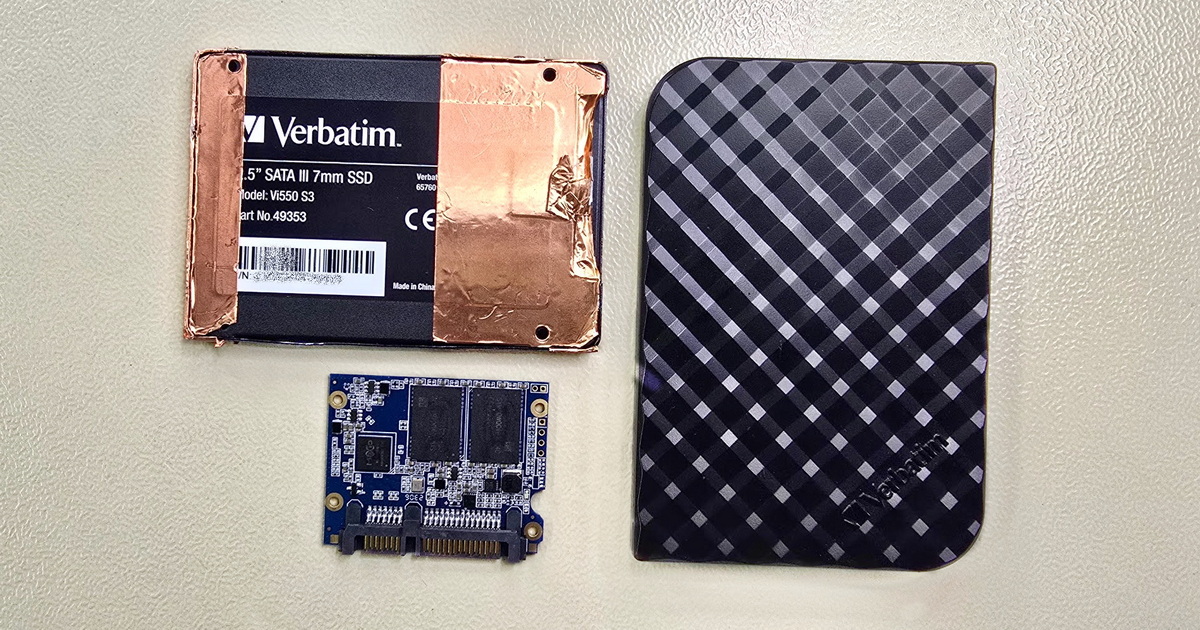
Have you lost access to data on your disk? Don’t panic, and above all don’t try to get the disk working again through amateur fixes. The first and most important step is to stop using the disk immediately. We offer free diagnostics and professional data recovery for both physical and software failures.


After losing data on a disk, the safest first step is always the same: power the device off, disconnect the disk, and don’t reconnect it or run any repair or recovery tools until you know what kind of fault you’re dealing with. Only then, based on how the disk behaves, do you decide whether you can handle the case yourself or whether it belongs in a lab. Diagnostics and pickup within the Czech Republic are free.
→ Detailed information on symptoms, brands, and types of hard drives: Data recovery from HDDs and external disks
Whatever type of disk you have, one universal rule applies: the less you handle a damaged disk, the higher your chances of saving the data. Power off the computer or disconnect the external disk, and don’t reconnect it—not even “just for a moment,” and not into a different port or cable in the hope that it’ll come up this time. Repeated attempts to start the disk are the most common reason a recoverable situation turns into an unrecoverable one.
With conventional hard drives (HDDs) this is most critical: if the disk clicks, grinds, or beeps, every further spin-up can damage the platters and lower your chances of recovery. SSDs and USB flash drives aren’t at risk of mechanical damage, but here too any further write to the disk can irreversibly overwrite data that could otherwise be recovered. What to do next depends on how the disk behaves—you’ll narrow that down in the next step.
Free consultation, diagnostics, pickup
The first action is the same for every disk. What differs is what comes next—and that depends on how the fault shows itself. Find the situation below that matches your disk; for each, we note what it probably means and whether it’s worth attempting anything yourself. If you’re unsure which category fits, treat that as a signal to leave the disk alone and ask for advice—a consultation is free.
The disk doesn’t appear in the system after you connect it, you can’t hear it spin up, or it spins but the computer doesn’t see it. There can be several causes—from an electronics (PCB) failure through a firmware fault to a mechanical problem—and you can’t tell them apart from the outside. Recovery software won’t help here: if the disk isn’t detected, there’s nothing to read from. The risk of an amateur intervention is high, so don’t power the disk on again and request free diagnostics.
The disk is visible in the system, but the files are missing, the partition looks empty, or the system offers to format it. This is often a damaged file system—the data physically remains on the disk; the system just can’t find a path to it. Under no circumstances accept the offer to format, and don’t run repair tools (such as CHKDSK) blindly—on a disk whose state is unknown, especially with modern HDDs with shingled magnetic recording (SMR), they can overwrite the remaining data. On an otherwise healthy disk, this is one of the few cases where, under clear conditions, a DIY recovery can be considered—see the third step.
Unusual sounds from a hard drive—regular clicking, knocking, beeping, or scratching—are almost always a sign of a mechanical fault: damaged read/write heads, a seized motor, or a damaged platter surface. This is the most serious category, and the only correct response is to power the disk off immediately and not turn it on again. Every further spin-up with damaged heads can irreversibly scratch the platters that hold your data. Software and home methods won’t help here. The case belongs solely in a professionally equipped lab—contact us as soon as possible.
The disk works normally—no unusual sounds—and you just accidentally deleted files or reformatted a partition. Here the chances of recovery tend to be highest and the risk lowest—but on one essential condition: nothing must be written to the disk from that moment on. On a hard drive with conventional (classic) magnetic recording, the rule is that as long as the data hasn’t been physically overwritten, it remains recoverable. Two situations significantly shorten that window, though. On SSDs and USB flash drives, the drive returns zeros in place of deleted data after TRIM, so ordinary recovery software cannot find it; from then on, only lab recovery has a chance, and only until the controller physically erases the data. And on hard drives with shingled magnetic recording (SMR)—increasingly common in everyday consumer disks, and usually indistinguishable from the outside—even such a “simple” case may require intervention in the disk’s firmware and service data, because these disks organize data physically differently. Whether it’s worth attempting recovery yourself is covered in the third step.
Free consultation, diagnostics, pickup
The most important decision in the whole process is this: should I try anything on this disk, or am I risking my data by doing so? The answer doesn’t depend on how good you are with computers, but on what kind of fault it is and how irreplaceable the data on the disk is.
A DIY recovery is only worth considering when all of the following hold at once:
If all these points hold, you can carefully use proven recovery software in read-only mode and save the recovered data to a different disk, never back to the original. Even so, every write to the original disk lowers your chances of success.
Send the disk to a lab immediately if any of these situations apply:
The line between “I’ll give it a try” and “I’ll leave it to a lab” is thin in practice, and with modern disks it shifts toward caution. If you’re hesitating, request free diagnostics—we’ll tell you straight away whether a home attempt would make sense or would more likely put the data at risk.
A lot of people reach this page only after they’ve already tried something—connecting and disconnecting the disk several times, repeatedly restarting the computer, running recovery software, or confirming a format. If that’s your case, don’t panic, but stop from this point on. Every further attempt only lowers the chances of recovery, whereas by stopping you lose nothing. The fact that you’ve tried something doesn’t mean the data is lost—in many cases we can recover it even after previous attempts. Only free diagnostics will reliably show the real chances of recovery and the extent of any damage; until then, don’t handle the disk any further and store it in a safe place.
Free consultation, diagnostics, pickup
Alongside the right approach, several widespread “tips” circulate online that, in practice, regularly cost people data that could otherwise have been saved.
Repeatedly powering on in the hope that “it’ll come up.” With a disk that has a mechanical fault, every start is a gamble—damaged read/write heads can scratch the platters on the next spin-up and turn a recoverable case into an unrecoverable one. Once you’ve powered off a disk that was behaving suspiciously, don’t try to revive it again.
Running recovery software blindly. Recovery tools (Recuva, EaseUS, and the like) have their place—but only with clear logical faults on an otherwise healthy disk. On a disk with an unknown fault, with mechanical symptoms, with shingled-recording (SMR) hard drives, and with SSDs and flash drives, they can overwrite the remaining data. If you don’t know what state the disk is in, don’t run software.
Rice and the freezer. Rice and the freezer are among the most persistent online myths. Putting a water-damaged disk in rice does nothing useful—rice won’t reliably dry out electronics, and the real risk after contact with water is corrosion and a short circuit on power-up, not the moisture itself. With hard drives, it’s usually the disk’s electronics (PCB) that are damaged, and rice does nothing about that. “Freezing” a disk is advice from the days of long-obsolete technology; today it causes condensation and corrosion inside the disk and only makes things worse. After contact with water, don’t power the disk on, don’t take it apart, and get it to a lab as soon as possible.
Once you know your situation, you’ll find detailed information on symptoms, procedures, and brands on the page dedicated to your specific type of media:
If you’d like to know what happens to the disk after you send it to us—from intake through diagnostics to handing over the recovered data—it’s described step by step on the page How data recovery from an external disk works. If, instead, you’re dealing with disk repair rather than data recovery, you’ll find the difference explained on the page HDD repair.
“Recovering data from a disk” and “rescuing data from a disk” mean the same thing in practice, and the procedure is identical: power the disk down, disconnect it, and don’t run any recovery tools on it until you know the type of failure. Based on how the disk behaves, you then decide between a DIY attempt and the lab. With mechanical damage (clicking, a disk that won’t spin up), don’t attempt recovery yourself.
It depends on how the disk behaves. If it makes unusual sounds (clicking, knocking, beeping), reports read errors, or behaves suspiciously after a drop, power it off immediately—every extra minute of operation can deepen the damage and lower the chances of recovery. If the disk works completely normally and it’s just a matter of accidentally deleted files on an otherwise healthy disk, you can try copying the data to a different disk—but the moment anything unusual appears, stop. With mechanical faults, waiting and further attempts generally only deepen the damage.
Recovery software (Recuva, EaseUS, and the like) helps only with clear logical faults on an otherwise functional disk—typically accidentally deleted data or a format. In that case, use it in read-only mode and save the recovered data to a different disk. By contrast, on a disk with an unknown fault, with mechanical symptoms, with modern shingled-recording (SMR) HDDs, and with SSDs and flash drives, software can overwrite the remaining data and make recovery impossible. With SSDs and flash, the recovery window is also very short because of the TRIM function. If you’re not sure what state the disk is in, don’t run software—ask for advice; a consultation is free.
Reliable diagnosis requires testing, but as a rough guide: a mechanical fault most often shows up as unusual sounds (clicking, knocking, beeping), the disk not spinning up at all or not reporting in the system, or symptoms appearing after a drop or impact. A software (logical) fault, by contrast, shows up when the disk reports normally, is visible in the system, and behaves technically fine, yet the data is inaccessible, the partition looks empty, or the system offers to format it. A borderline situation is when the disk reads slowly, “freezes,” or reports read errors—that can be an incipient mechanical problem, and it’s safer to treat it as a more serious fault. When in doubt, use free diagnostics.
→ Detailed information on symptoms, brands, and types of hard drives: Data recovery from HDDs and external disks
EXALAB Data Recovery
Microshop s.r.o.
Pod Marjánkou 4
169 00 Praha 6
Česká Republika
Opening hours:
Monday to Thursday
9.00 - 18.00
Friday 9.00 - 17.30
other opening hours are possible upon agreement
Hotline: +420 608 177 773
Office: +420 233 357 122
E-mail: info@exalab.cz
Hotline: +420 608 177 773
Kancelář: +420 233 357 122
E-mail: info@exalab.cz
Opening hours:
Monday to Thursday
10.00 - 18.00
Friday 10.00 - 17.30
other opening hours are possible upon agreement
EXALAB Data Recovery
Microshop s.r.o.
Pod Marjánkou 4
169 00 Praha 6
Česká Republika